
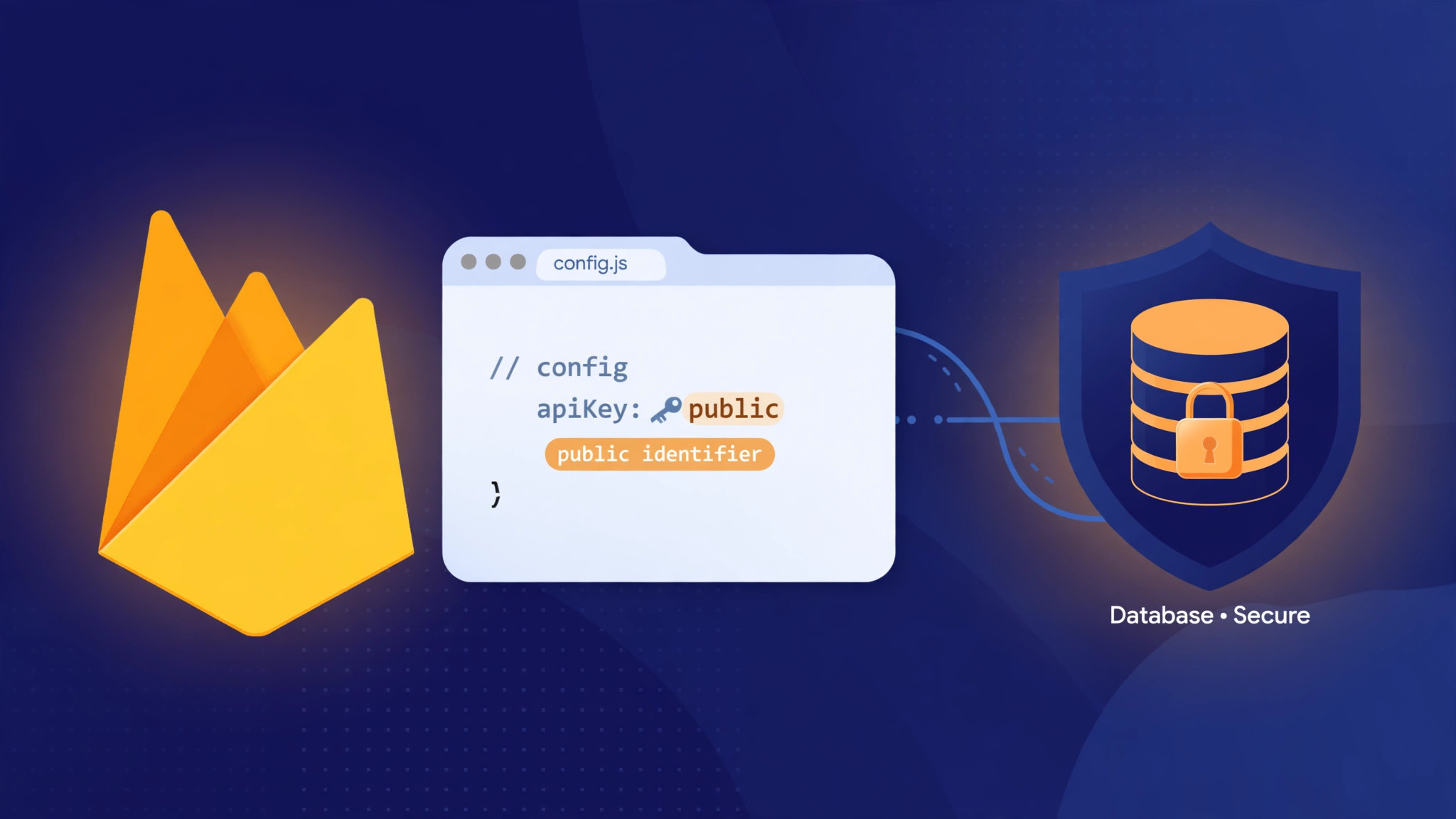
No. The Firebase API key is not a secret. It is a public identifier that tells Google which Firebase project your app belongs to. It ships inside your app’s code, anyone who opens your app can read it, and Firebase’s own documentation says that is fine.
What protects your data is not the key. It is four separate controls that sit behind it: Security Rules, which decide who can read or write your data; API key restrictions, which decide which Google services the key can call; App Check, which decides which apps may call your backend; and Authentication, which decides who the user is. If those four are set up properly, a public key is harmless. If they are not, hiding the key would not have saved you anyway — the key was never the lock.
That is the whole answer. The rest of this article shows you which Firebase credentials really are secret, how each of the four controls works, and how to check all of them in about ten minutes.
What the Firebase key actually is
When you connect an app to Firebase, you get a config object that looks like this:
const firebaseConfig = {
  apiKey: "AIza...",
  authDomain: "your-project.firebaseapp.com",
  projectId: "your-project",
  storageBucket: "your-project.appspot.com",
  messagingSenderId: "123456789",
  appId: "1:123456789:web:abc123"
};
That object is bundled into your JavaScript, or into the config files of your Android and iOS apps. Firebase creates a key for each platform automatically: a Browser key for web, an Android key, and an iOS key. On Android the key sits in google-services.json under current_key; on iOS it sits in GoogleService-Info.plist under API_KEY; on web it is the apiKey field above.
Firebase’s documentation is direct about what this key does and does not do: unlike typical API keys, Firebase keys are not used to control access to backend resources. That job belongs to Security Rules and App Check. The key only identifies your project, so Google can associate requests with it for quota and billing. It does not prove who the caller is, and it cannot grant access to anything on its own.
This is why the key starts with AIza and looks like a password but behaves like a username. A username tells a system who you are; it does not let you in. The same is true here. Anyone holding your key can find your project and knock on its front door. Whether the door opens depends entirely on the rules.
Not every Firebase credential is public — the ones that are secret
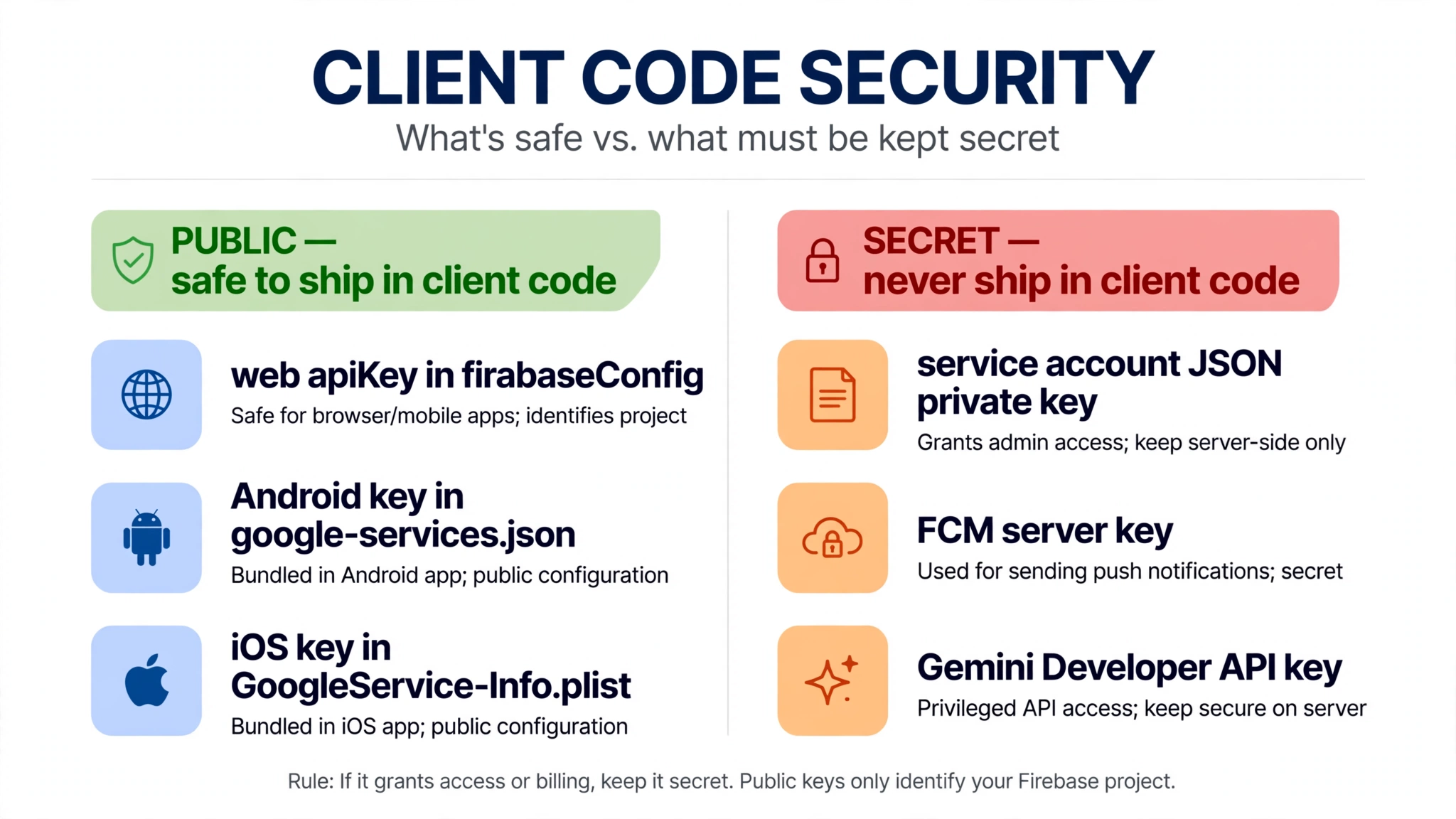
The confusion starts because Firebase projects hold several different credentials, and only some of them are public. Treating them all the same is the mistake that causes real damage: people guard the harmless key and leak the dangerous one. Firebase’s own security checklist draws the line plainly — API keys for Firebase services are not secret, but FCM server keys and service account private keys are sensitive and must be kept secret.
| Credential | Where it lives | Public or secret? |
|---|---|---|
Firebase web API key (apiKey) | firebaseConfig in your web app | Public — safe in client code |
| Firebase Android API key | google-services.json, current_key | Public — safe in client code |
| Firebase iOS API key | GoogleService-Info.plist, API_KEY | Public — safe in client code |
| Service account private key | JSON file for the Admin SDK, server-side | Secret — never in a repo or a browser bundle |
| FCM server key | Legacy FCM HTTP API, server-side | Secret — never in client code |
| Gemini Developer API key | Server-side, for calling Gemini | Secret — never in client code or a public key’s allowlist |
The service account key is the one that matters most. It is a JSON file with a private key block, used by the Firebase Admin SDK on a server. Code using it bypasses Security Rules entirely — it can read, write and delete anything in your project. If that file ever appears in a repo or a browser bundle, treat it as compromised: revoke it, replace it, and check what it was used for. The same applies to an FCM server key, which can send push notifications as your app, and to a Gemini Developer API key, which can run up charges on a billable service.
A useful rule of thumb, and the one the diagram states: if a credential grants access or billing, keep it secret. Public keys only identify your Firebase project.
The four things that actually protect your data
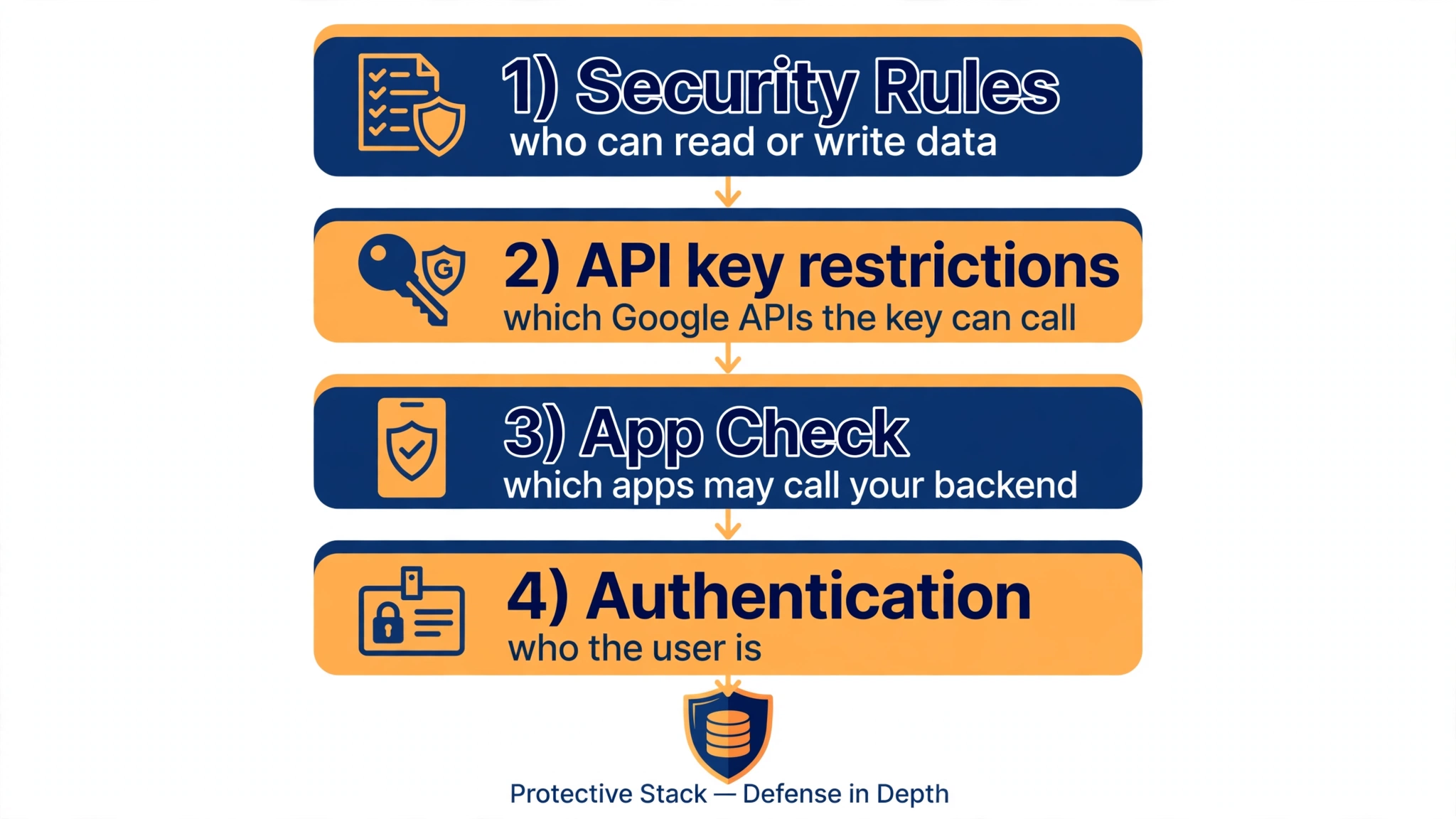
1. Security Rules — who can read or write your data. This is the control that matters most, and it is also the one most vibe-coded apps get wrong. Firestore, Realtime Database and Cloud Storage each have their own rules, and each defaults to denying access. The trouble starts when development rules ship to production. Firebase’s guide to insecure rules warns that if you are not authenticating users and configuring security rules, anyone who guesses your project ID can steal, modify, or delete the data. In March 2024, The Register reported researchers who scanned 5.2 million domains and found at least 900 websites with misconfigured Firebase databases, leaving at least 125 million user records publicly accessible. The keys were not the failure. The rules were.
The classic open rule is:
// Never use in production: anyone can read and write everything
service cloud.firestore {
  match /databases/{database}/documents {
    match /{document=**} {
      allow read, write: if true;
    }
  }
}
A subtler version is allow read, write: if request.auth != null;. Firebase’s own guidance says to confirm you want any logged-in user to have access to the data — because if anyone can sign up for your app, “signed in” means “anyone”. The fix is owner-only rules, like this pattern from Firebase’s documentation:
service cloud.firestore {
  match /databases/{database}/documents {
    match /some_collection/{document} {
      // Allow reads and deletion if the current user owns the existing document
      allow read, delete: if request.auth.uid == resource.data.author_uid;
      // Allow creation if the current user owns the new document
      allow create: if request.auth.uid == request.resource.data.author_uid;
      // Allow updates by the owner, and prevent change of ownership
      allow update: if request.auth.uid == request.resource.data.author_uid
                    && request.auth.uid == resource.data.author_uid;
    }
  }
}
Remember that Firestore, Realtime Database and Storage have separate rules files. Locking Firestore does not lock your files in Storage. Firebase’s security checklist recommends starting Storage with a deny-all rule and opening paths one at a time:
rules_version = '2';
service firebase.storage {
  match /b/{bucket}/o {
    match /{allPaths=**} {
      allow read, write: if false;
    }
  }
}
Also watch for test mode: when you create a database, Firebase offers test mode, which leaves it open to anyone for 30 days. Extending that deadline extends the open window.
2. API key restrictions — which Google services the key can call. Your Firebase key is a Google Cloud API key, and a Google Cloud key can call any API enabled on the project unless its allowlist says otherwise. Firebase’s documentation is explicit: the allowlist for a publicly accessible key should not include the Generative Language API — the Gemini API. If Gemini is enabled on your project and your key’s allowlist includes it, anyone with the key can run up Gemini charges on your bill. One developer reported a bill of more than €54,000 in 13 hours from exactly this setup.
Check it in the Google Cloud console, under APIs & Services, then Credentials: open each key, and under API restrictions confirm it lists only the Firebase-related APIs your app uses. Firebase has automatically restricted new auto-provisioned keys to Firebase APIs since May 2024, but older keys, and keys created by hand, may still be unrestricted — “Don’t restrict key” means the key can call any enabled API on the project. If you use a non-Firebase Google API, such as Maps or Gemini, Firebase recommends a separate, restricted key for it, kept off the browser key entirely.
Also tighten quotas if you use password-based Firebase Authentication. Firebase notes that someone with your key cannot reach your database or Storage data as long as it is protected by Security Rules — but they can make authentication requests against your project, which is a route for brute-force attempts. Lowering the Identity Toolkit quota to match your app’s normal traffic limits that.
3. App Check — which apps may call your backend. Security Rules decide which users can access resources. App Check decides which apps can. It attests that requests come from your genuine app, which cuts down automated abuse from strangers who hold your key. Firebase’s security checklist recommends enabling App Check for every service that supports it. It does not replace rules — a genuine app can still be misused by a signed-in user the rules do not restrain — but it closes the easiest route for someone who copied your public key into a script.
4. Authentication — who the user is. Rules usually check request.auth, so the sign-in method matters. Two details from Firebase’s security checklist are easy to miss. First, anonymous authentication is only for warm onboarding: anyone can create an anonymous account in your project, so rules should require a real sign-in method or a verified email for anything that is not public. Second, if you use email and password sign-in, enable email enumeration protection, which stops strangers from using your auth endpoints to guess which email addresses have accounts.
Check all four in ten minutes
Work through this on your own project — only on projects you own or have permission to test.
- Rules. In the Firebase console, open Firestore Database, then Rules, and do the same for Realtime Database and Storage. Flag any
allow read, write: if true;, any barerequest.auth != null, and any test-mode rule with a future date. Replace open rules with owner-only rules, and use the Rules Playground in the console to test them: run a read and a write as an unauthenticated user and as a different user, and confirm both are denied. - Allowlist. In the Google Cloud console, go to APIs & Services, then Credentials. For each key, confirm API restrictions list only Firebase-related APIs, and that the Generative Language API is not there. Remove APIs your app does not use — but be careful not to remove one Firebase needs, or your app’s calls will start failing.
- App Check. In the Firebase console, open App Check and confirm it is enforced for the services your app uses. If it is not set up, enable it for Firestore, Realtime Database, Storage and Cloud Functions.
- Auth. Confirm your rules do not treat anonymous sign-in as a real user for private data, require verified email where it matters, and enable email enumeration protection for email-password sign-in. If you use password sign-in, tighten the Identity Toolkit quota to match your app’s normal traffic.
- Real secrets. Search your repo for service account JSON files, FCM server keys and Gemini API keys. If you find one in a repo or a browser bundle, rotate it immediately — that is a real leak, and the GitHub cleanup steps in the companion guide on an exposed Firebase key cover the history rewrite.
Where PrivacyReport fits
If you would rather check first and fix second, PrivacyReport’s homepage describes a scan that takes a deployed app URL or a GitHub repo URL and returns a simple privacy and security report, checking for exposed keys and more than 20 other issues, with a free tier of one to two scans a month. Use it as a first pass for the checks in this article — especially the search for real secrets sitting next to your Firebase config — and follow up with the rules and allowlist steps above for anything it finds.
Frequently asked questions
Is the Firebase API key secret?
No. Firebase’s documentation says API keys for Firebase services are not used to control access to backend resources, and are OK to include in code or checked-in config files. The key identifies your project. Security Rules, App Check and key restrictions do the protecting.
Is it safe to expose my Firebase API key?
Yes, as long as the key is used only for Firebase services and its allowlist contains only Firebase-related APIs. That is the condition Firebase states. If the key can also call a billable non-Firebase API such as Gemini, or your Security Rules are open, exposure becomes a problem — but the key is not the cause.
Can someone hack my Firebase database with just the API key?
Not if your Security Rules are correct. Rules are checked on the server for every read and write, and the key alone cannot bypass them. If your rules are open, someone who guesses your project ID can read or change your data — with or without the key.
What is the difference between the Firebase API key and a service account key?
The Firebase API key identifies your project to Google’s services and is safe to expose when restricted. A service account key is a private credential for server-side code that bypasses Security Rules and gives admin access to your project. If a service account key is ever in a repo or a browser bundle, treat it as compromised: revoke it, replace it, and check what it was used for.
Should I hide my Firebase API key in an environment variable?
A NEXT_PUBLIC_ or VITE_ variable is copied into the browser bundle at build time, so the key ends up public anyway — which, for a Firebase web key, is fine. A server-only variable keeps a value off the browser, but your Firebase web app needs the key in the browser to work at all. Hiding this particular key is solving the wrong problem; the rules and the allowlist are the controls that matter.
Does App Check replace Security Rules?
No. App Check checks that requests come from your genuine app; Security Rules check that the signed-in user is allowed to do what they asked. Firebase presents them as complementary: you need both, because an attacker can hold a valid key and still be stopped by rules, and a genuine app can still be misused by a signed-in user the rules do not restrain.
Do I need to rotate my Firebase API key?
Not because it was seen. Deleting a key your app uses will break your app’s Firebase calls, and Firebase’s documentation says so. Rotate a key only if it is also used for a non-Firebase service, or if Firebase’s documentation for your case says to. A service account key or any other real secret that leaked should be rotated immediately.
Sources
- Firebase, Learn about and manage API keys for Firebase
- Firebase, Firebase security checklist
- Firebase, Fix insecure rules (Firestore)
- The Register, Millions of user records exposed by 900+ sites via Firebase (18 March 2024)
- Dev.to, How an Unrestricted Firebase API Key Can Drain Your Bank Account Overnight
Related reading on PrivacyReport
- Firebase API Key Exposed on GitHub: Is It Actually a Problem?
- Is It Safe to Expose Your Supabase Anon Key? (Only If RLS Is On)
- How to Hide an API Key From the Browser Network Tab (and Why You Can’t)
- What to do if an API key is exposed
- Free Security Scanner for Vibe-Coded Apps: Check Yours in 60 Seconds
