
Every website you visit drops tiny files onto your device called cookies. They track your behaviour, remember your preferences, and follow you across the web — often without you realising it. If you value your privacy online, learning how to browse without cookies is one of the most practical steps you can take.
This guide covers exactly what cookies are, why you might want to avoid them, and step-by-step methods to browse with them disabled or minimised.
What Are Cookies?
Cookies are small text files that websites store on your device when you visit them. They were originally designed for harmless purposes — keeping you logged in, remembering your shopping cart, saving your language preference. But over time, cookies became the primary tool of the online advertising industry.
There are two main types:
- First-party cookies — set by the website you are actually visiting. Generally harmless and often necessary for the site to function.
- Third-party cookies — set by external companies (advertisers, analytics firms) embedded in the website. These track you across multiple sites and build detailed profiles of your browsing habits.
When you visit a news site, for example, dozens of third-party cookies from advertising networks may be placed on your device — even though you never visited those companies directly.
Why Browse Without Cookies?
- Stop cross-site tracking — advertisers follow you from site to site, building a profile of your interests, income level, and behaviour
- Reduce targeted advertising — without cookies, ads cannot be tailored to your personal data
- Prevent price discrimination — some retailers show higher prices based on your browsing history and device type
- Protect sensitive searches — medical, legal, or financial searches should not be tied to your identity
- Limit data broker access — cookie data is bought and sold by data brokers you have never interacted with
Step 1 — Use a Privacy-Focused Browser
Your first and most impactful step is choosing a browser built with privacy in mind. Most people use Chrome, which is built by Google — one of the world’s largest advertising companies. Switching browser alone makes a significant difference.
Recommended browsers:
- Firefox — open-source, highly configurable, strong privacy defaults. Best for most users.
- Brave — blocks third-party cookies and ads by default, no configuration needed
- Tor Browser — maximum anonymity; routes traffic through multiple servers. Slower but extremely private.
- Safari — Apple’s browser has strong Intelligent Tracking Prevention built in, good for iPhone and Mac users
How to set Firefox as your default browser (Windows):
- Go to Settings → Apps → Default Apps
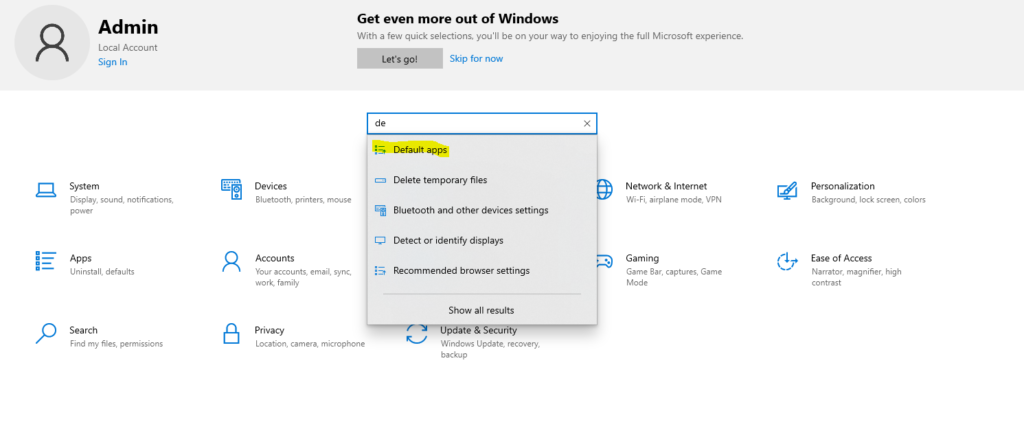
- Scroll to Web Browser
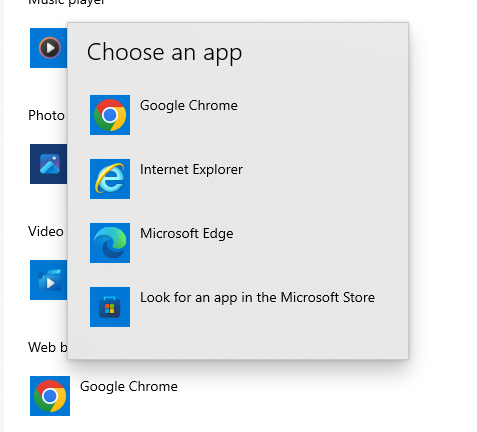
- Click and select Firefox
How to set Firefox as your default (macOS):
- Open Firefox
- Go to Preferences → General
- Click Make Default
Step 2 — Block Third-Party Cookies in Your Browser
Even if you keep your current browser, you can block third-party cookies in settings. This stops advertisers from tracking you across sites while keeping first-party cookies (logins, preferences) intact.
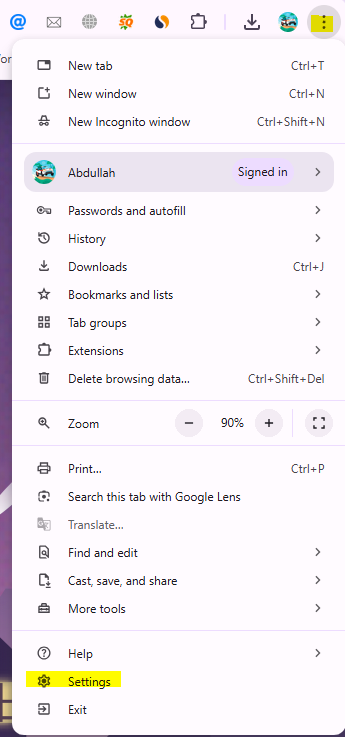
Google Chrome:
- Click the three-dot menu → Settings
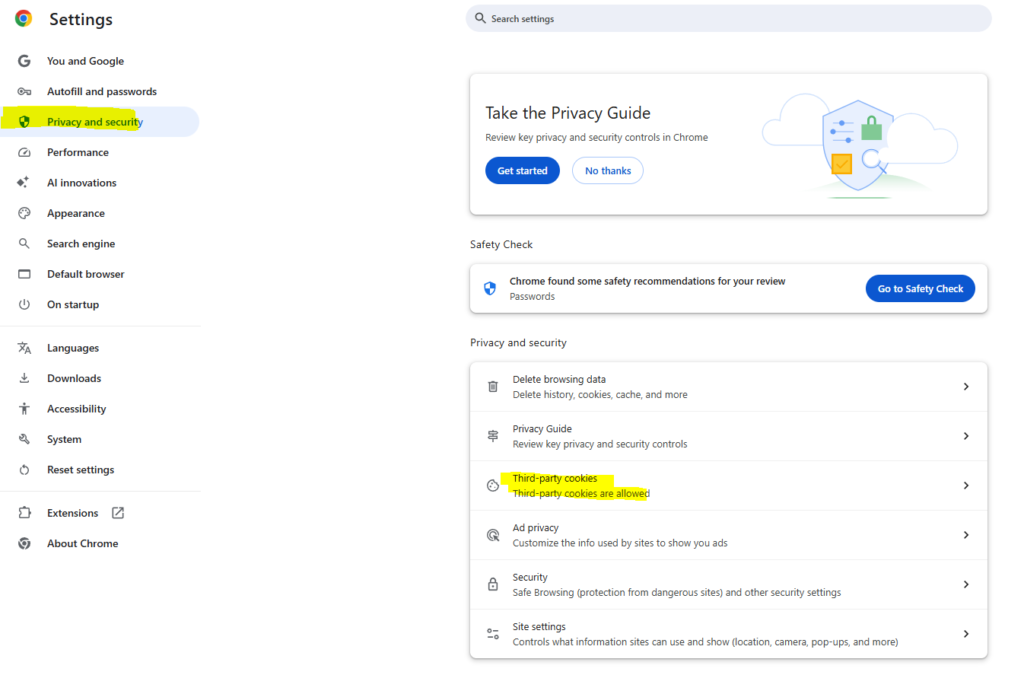
- Go to Privacy and Security → Cookies and other site data
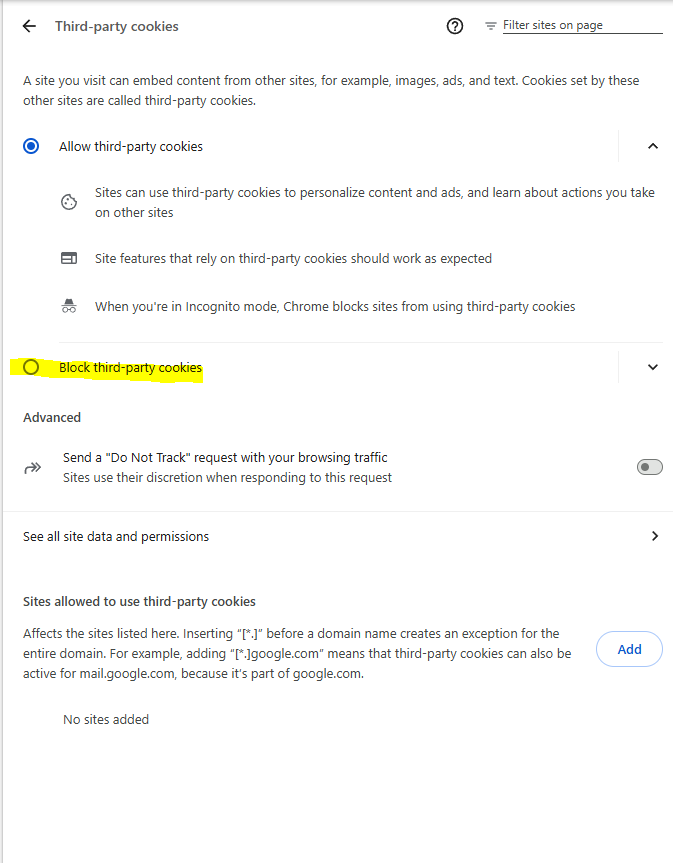
- Select Block third-party cookies
Firefox:
- Click the menu icon → Settings
- Go to Privacy & Security
- Under Enhanced Tracking Protection, select Strict
Safari:
- Go to Safari → Settings → Privacy
- Check Prevent cross-site tracking
- Optionally check Block all cookies for maximum privacy
Microsoft Edge:
- Go to Settings → Cookies and site permissions
- Click Cookies and site data
- Toggle on Block third-party cookies
Brave: Brave blocks third-party cookies automatically. No configuration needed.
Step 3 — Use Private / Incognito Mode
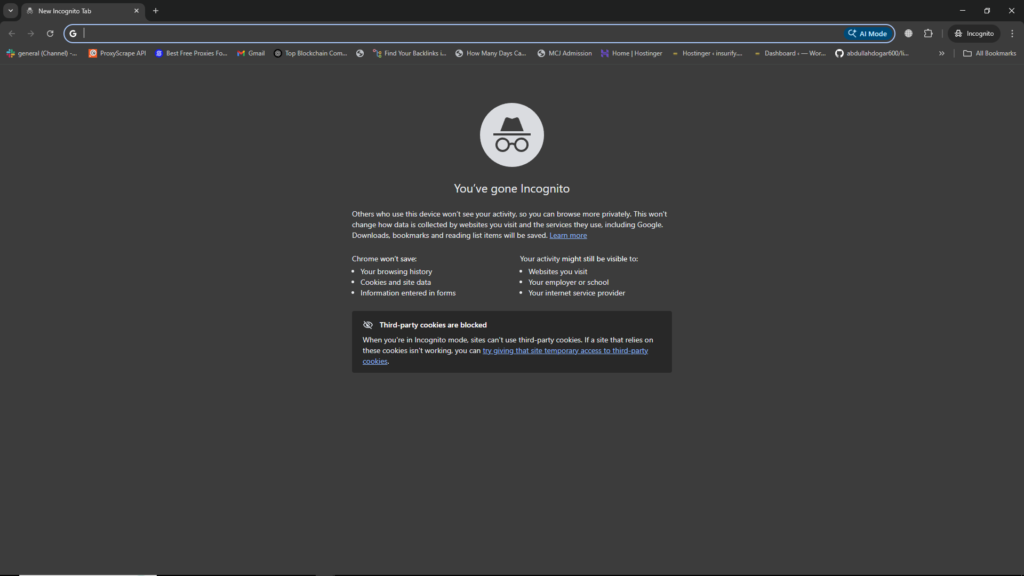
Every major browser has a private browsing mode. When you close a private window, the browser deletes all cookies, history, and form data from that session.
- Chrome / Edge — press
Ctrl + Shift + N(Windows) orCmd + Shift + N(Mac)
- Firefox — press
Ctrl + Shift + P(Windows) orCmd + Shift + P(Mac) - Safari — go to File → New Private Window
Important limitation: Private mode does not make you anonymous online. Your Internet Service Provider (ISP), employer, and the websites you visit can still see your activity. It only prevents cookies and history being saved on your device.
Step 4 — Install a Cookie-Blocking Extension
Browser extensions can block cookies and trackers more aggressively than built-in settings alone.
Recommended extensions:
- uBlock Origin (Firefox, Chrome, Edge) — the most effective ad and tracker blocker available. Free and open-source. Install it and leave it running.
- Privacy Badger (Firefox, Chrome) — developed by the Electronic Frontier Foundation. Automatically learns and blocks invisible trackers.
- Cookie AutoDelete (Firefox, Chrome) — automatically deletes cookies from sites you are no longer visiting, keeping your cookie store clean at all times.
How to install uBlock Origin on Firefox:
- Open Firefox and go to addons.mozilla.org
- Search for uBlock Origin
- Click Add to Firefox
- Click Add when prompted
- It is now active — no further configuration needed for most users
Step 5 — Clear Cookies Regularly
If you do not want to block cookies entirely, clearing them regularly limits how long tracking data persists on your device.
Chrome:
- Press
Ctrl + Shift + Delete(Windows) orCmd + Shift + Delete(Mac) - Set time range to All time
- Check Cookies and other site data
- Click Delete data
Firefox:
- Press
Ctrl + Shift + Delete - Select Everything from the time range dropdown
- Check Cookies and click Clear Now
Safari:
- Go to Safari → Settings → Privacy
- Click Manage Website Data
- Click Remove All
iPhone / iOS:
- Go to Settings → Safari
- Tap Clear History and Website Data
Android (Chrome):
- Open Chrome → three-dot menu → History
- Tap Clear browsing data
- Select Cookies and site data → Clear data
Step 6 — Use a Search Engine That Doesn’t Track You
Google tracks every search you make and ties it to your account and cookies. Switch to a privacy-respecting search engine to remove this layer of tracking entirely.
- DuckDuckGo — the most popular private search engine. No tracking, no personalised results, easy to use.
- Startpage — returns Google results without the tracking. Good if you want Google’s quality without Google’s surveillance.
- Brave Search — independent index, no tracking, built into the Brave browser.
To set DuckDuckGo as your default in Firefox:
- Go to Settings → Search
- Under Default Search Engine, select DuckDuckGo
Step 7 — Use a VPN for an Extra Layer of Privacy
A VPN (Virtual Private Network) encrypts your internet traffic and hides your IP address. While it does not block cookies directly, it prevents your ISP and network-level observers from seeing which sites you visit — complementing your cookie-blocking efforts.
Reputable VPN providers include ProtonVPN (free tier available, based in Switzerland), Mullvad (strongly privacy-focused, accepts anonymous payment), and ExpressVPN (fast, user-friendly).
Note: Free VPNs should be treated with caution — many log and sell your data, defeating the purpose entirely.
Step 8 — Handle Cookie Consent Banners Properly
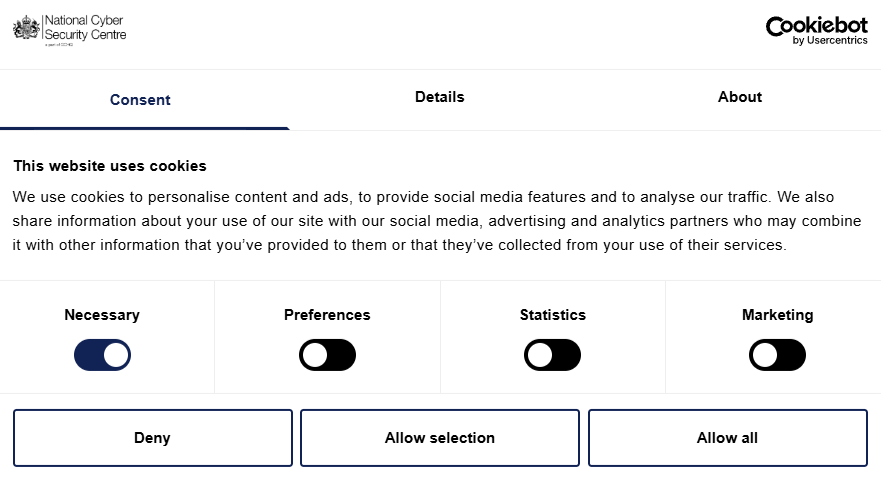
Under privacy laws like GDPR (Europe) and similar regulations, websites must ask your permission before placing non-essential cookies. Most people click “Accept All” out of habit. Don’t.
- Always click Reject All or Manage Preferences when a cookie banner appears
- Select only Necessary or Strictly Required cookies
- Use the browser extension I don’t care about cookies or Consent-O-Matic to automate rejection of cookie banners
Quick Summary — Your Cookie-Free Browsing Checklist
- Switch to Firefox, Brave, or another privacy-focused browser
- Block third-party cookies in your browser settings
- Use private/incognito mode for sensitive searches
- Install uBlock Origin and Cookie AutoDelete extensions
- Clear cookies regularly (or set auto-delete)
- Switch your default search engine to DuckDuckGo
- Consider a reputable VPN for network-level privacy
- Always reject non-essential cookies on consent banners
Conclusion
Browsing without cookies does not require technical expertise — just a few deliberate changes to your setup. You do not need to block every cookie to make a meaningful difference. Blocking third-party cookies, installing uBlock Origin, and switching to DuckDuckGo alone will dramatically reduce the amount of tracking data collected about you every day. Start with one step, then work through the rest at your own pace.

Abdullah Zulfiqar is a cybersecurity and application security writer at PrivacyReport.org, where he focuses on AI-driven security, privacy protection, and SaaS application risk analysis. His work explores how modern AI systems and digital platforms handle sensitive user data, with a strong emphasis on identifying vulnerabilities, preventing data leaks, and improving software security practices.
He writes about the intersection of artificial intelligence and cybersecurity, helping readers and developers understand emerging threats in AI-powered applications and how to build more secure, privacy-respecting systems.
Leave a Reply