

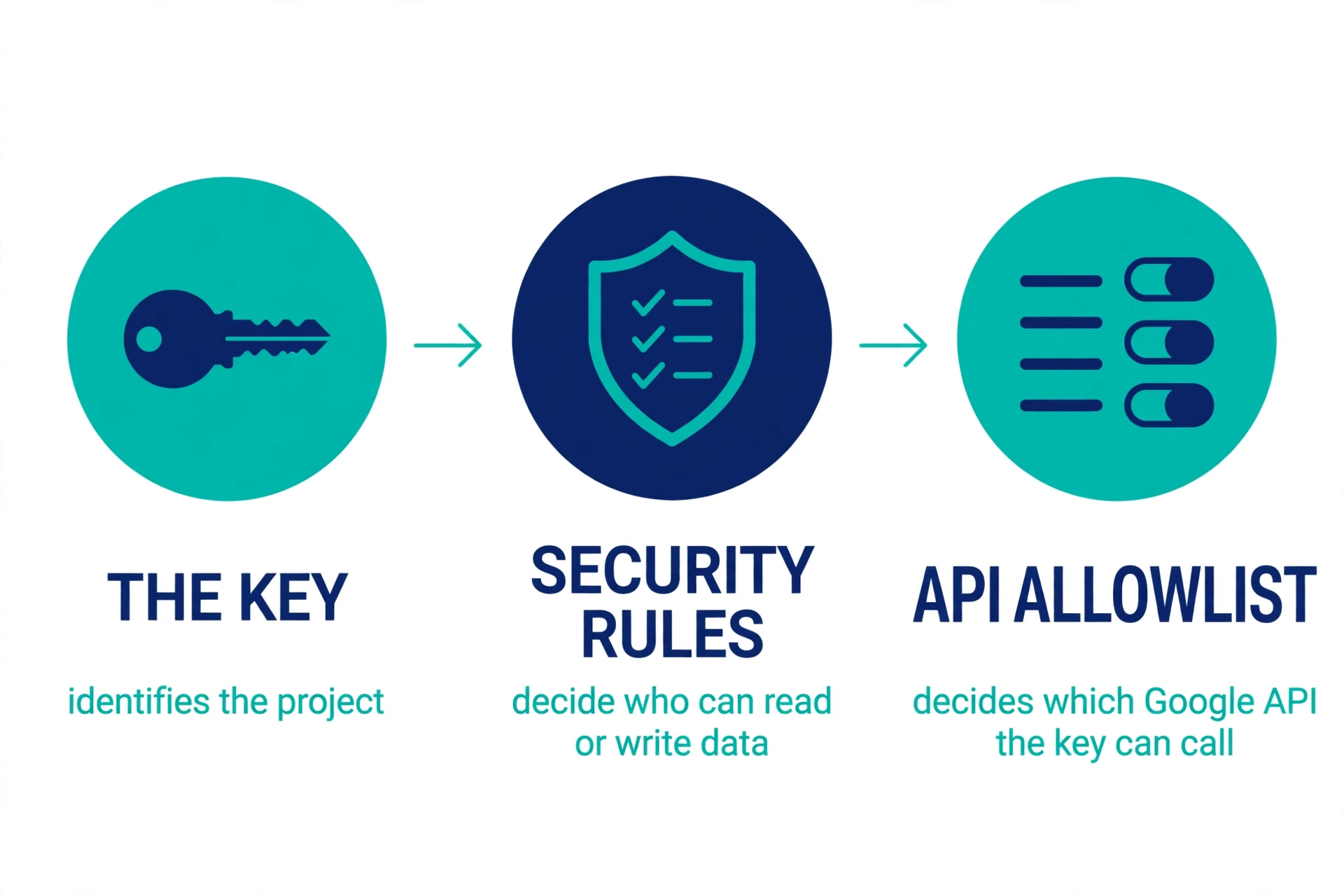
Your Firebase API key is on GitHub, and GitHub — or a scanner, or a worried teammate — has flagged it. The short answer is: usually not a problem by itself, but it is a problem if the things behind the key are not locked down. The key is not a password. It is a public identifier that tells Google which Firebase project your app belongs to. What protects your data is not the key. It is your Security Rules, which decide who can read or write your data, and your API allowlist, which decides which Google services that key can call.
That distinction is the whole article. If your rules are tight and your allowlist is limited to Firebase services, an exposed key is an untidy repo, not a breach. If your rules are open — and a lot of vibe-coded apps ship with open rules — the key on GitHub is the signpost pointing straight at your users’ data. So do not panic about the key. Check the three things behind it.
What the Firebase key actually is
When you add Firebase to a web app, you get a config object that looks like this:
const firebaseConfig = {
  apiKey: "AIza...",
  authDomain: "your-project.firebaseapp.com",
  projectId: "your-project",
  storageBucket: "your-project.appspot.com",
  messagingSenderId: "123456789",
  appId: "1:123456789:web:abc123"
};
That object ships inside your JavaScript bundle. Anyone who opens your app can read it, whether or not it is on GitHub. Firebase’s own documentation says this plainly: unlike typical API keys, Firebase keys are not used to control access to backend resources — that can only be done with Firebase Security Rules and App Check. It also says Firebase keys are OK to include in code or checked-in config files.
So the key does two things: it identifies your project, and it associates requests with your project for quota and billing. It does not prove who the caller is, and it does not decide what the caller may do. A stranger with your key can find your project and try its front door. Whether the door opens depends on the rules.
This is the same shape as the Supabase anon key, covered in an earlier article: a public identifier is safe only when the rules behind it are right. The Firebase version of that mistake is just as common, and the numbers show it. In March 2024, The Register reported researchers who scanned 5.2 million domains and found at least 900 websites with misconfigured Firebase databases, leaving at least 125 million user records publicly accessible — including 20 million passwords and 27 million billing details. The keys were not the failure. The rules were.
Why GitHub flags it anyway
GitHub’s secret scanning looks for strings shaped like credentials. A Firebase key starts with AIza, the same prefix as any Google Cloud API key, and GitHub cannot tell from the string alone whether it is a harmless Firebase web key or an unrestricted Google Cloud key with access to paid services. So it flags it, and that flag is worth reading rather than dismissing — because sometimes the flag is right about the wrong thing. The key may be fine, while the repo it sits in is not.
Push protection, which blocks a push containing a recognised secret before it reaches the repository, works the same way. It is a useful tripwire for real secrets. A Firebase web key will keep tripping it, which is why the fix is not to fight the scanner but to understand what it found and what else was in the same push.
The three things that decide whether you have a problem
1. Your Security Rules — the one that matters most. Firestore, Realtime Database and Cloud Storage each have their own rules, and each defaults to denying access. The trouble starts when development rules ship to production. Firebase’s guide to insecure rules warns that if you are not authenticating users and configuring security rules, anyone who guesses your project ID can steal, modify, or delete the data. The classic open rule is:
// Never use in production: anyone can read and write everything
service cloud.firestore {
  match /databases/{database}/documents {
    match /{document=**} {
      allow read, write: if true;
    }
  }
}
A subtler version is allow read, write: if request.auth != null;. Firebase’s own guidance says to confirm you want any logged-in user to have access to the data — because if anyone can sign up for your app, “signed in” means “anyone”. The fix is owner-only rules, like this pattern from Firebase’s documentation:
service cloud.firestore {
  match /databases/{database}/documents {
    match /some_collection/{document} {
      // Allow reads and deletion if the current user owns the existing document
      allow read, delete: if request.auth.uid == resource.data.author_uid;
      // Allow creation if the current user owns the new document
      allow create: if request.auth.uid == request.resource.data.author_uid;
      // Allow updates by the owner, and prevent change of ownership
      allow update: if request.auth.uid == request.resource.data.author_uid
                    && request.auth.uid == resource.data.author_uid;
    }
  }
}
Remember that Firestore, Realtime Database and Storage have separate rules files. Locking Firestore does not lock your files in Storage. Check all three. And watch for test mode: when you create a database, Firebase offers test mode, which leaves it open to anyone for 30 days. Extending that deadline extends the open window.
2. Your API allowlist — the one that can cost you money. Your Firebase key is a Google Cloud API key, and a Google Cloud key can call any API enabled on the project unless its allowlist says otherwise. Firebase’s documentation is explicit: the allowlist for a publicly accessible key should not include the Generative Language API — the Gemini API. If Gemini is enabled on your project and your key’s allowlist includes it, anyone with the key can run up Gemini charges on your bill. One developer reported a bill of more than €54,000 in 13 hours from exactly this setup.
Check it in the Google Cloud console, under APIs & Services, then Credentials: open each key, and under API restrictions confirm it lists only the Firebase-related APIs your app uses. Firebase has automatically restricted new auto-provisioned keys to Firebase APIs since May 2024, but older keys, and keys created by hand, may still be unrestricted — “Don’t restrict key” means the key can call any enabled API on the project. If you use a non-Firebase Google API, such as Maps or Gemini, Firebase recommends a separate, restricted key for it, kept off the browser key entirely.
Also tighten quotas if you use password-based Firebase Authentication. Firebase notes that someone with your key cannot reach your database or Storage data as long as it is protected by Security Rules — but they can make authentication requests against your project, which is a route for brute-force attempts. Lowering the Identity Toolkit quota to match your app’s normal traffic limits that.
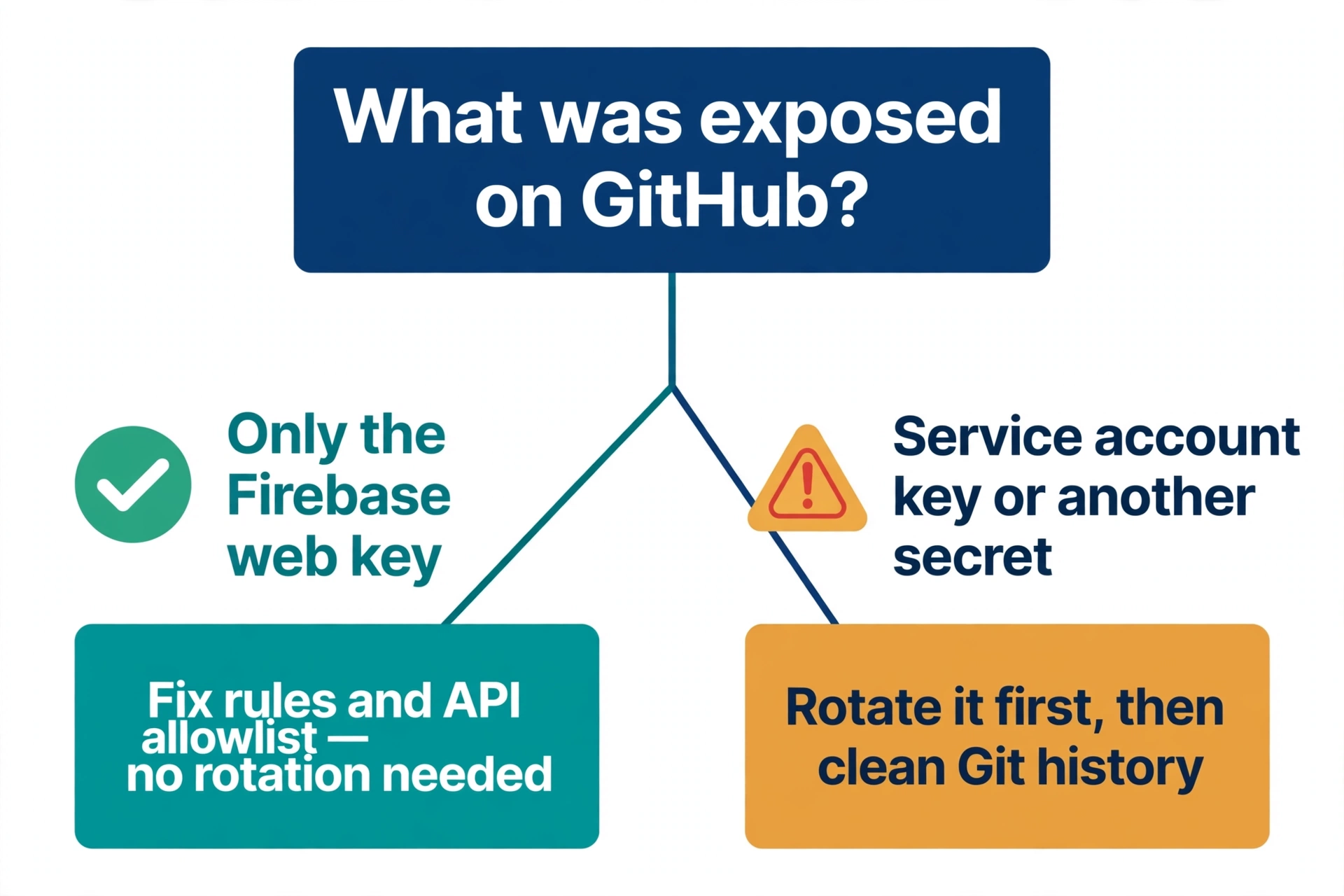
3. What else was in the same repo — the one people miss. A Firebase web key on GitHub is usually harmless. A service account key in the same repo is not. Service account JSON files, with their private key block, give admin-level access that bypasses Security Rules entirely. So do other providers’ secrets that an AI builder may have pasted next to the Firebase config — an OpenAI key, a Stripe secret key, a database password. The GitHub alert about the Firebase key is a good moment to search the repo for those, because they are the leak that actually needs rotating.
What to do now, in order
Work through this on your own project — only on projects you own or have permission to test.
- Check your rules first. In the Firebase console, open Firestore Database, then Rules, and do the same for Realtime Database and Storage. Flag any
allow read, write: if true;, any barerequest.auth != null, and any test-mode rule with a future date. Replace open rules with owner-only rules, and use the Rules Playground in the console to test them: run a read and a write as an unauthenticated user and as a different user, and confirm both are denied. - Check your allowlist. In the Google Cloud console, go to APIs & Services, then Credentials. For each key, confirm API restrictions list only Firebase-related APIs, and that the Generative Language API is not there. Remove APIs your app does not use — but be careful not to remove one Firebase needs, or your app’s calls will start failing.
- Turn on App Check if you have not. Firebase’s documentation pairs Security Rules with App Check: rules decide which users can access resources, App Check decides which apps can. It attests that requests come from your genuine app, which cuts down automated abuse from strangers who hold your key.
- Search the repo for real secrets. Look for service account JSON files,
.envfiles, and other providers’ keys in the same repository and its history. If you find a service account key or any other real secret, rotate it immediately — that is the first step, before any cleanup. A Firebase web key does not need rotating; deleting it would break your app’s calls, and Firebase’s documentation says so. - Clean up GitHub properly. Deleting the file from your working copy does not remove it from history. GitHub’s own guide says to revoke or rotate the secret first, then rewrite the history with
git filter-repo, force-push, and coordinate with anyone who cloned or forked the repo — forks and clones keep the old commits. That guide also warns that rewriting history changes commit hashes and can break tooling, so for a Firebase web key alone, this step is usually not worth it: fix the rules and the allowlist instead, and spend the history rewrite on repos that held real secrets. - Stop it happening again. Add
.envand config files with real secrets to.gitignore, turn on GitHub secret scanning and push protection for the repository, and add a local scanner such asgitleaksto your pre-commit checks. Keep the Firebase config in the repo if you like — Firebase says that is fine — but keep everything that is actually secret out of it.
Where PrivacyReport fits
If you would rather check first and fix second, PrivacyReport’s homepage describes a scan that takes a deployed app URL or a GitHub repo URL and returns a simple privacy and security report, checking for exposed keys and more than 20 other issues, with a free tier of one to two scans a month. Use it as a first pass for the checks in this article — especially the search for real secrets sitting next to your Firebase config — and follow up with the rules and allowlist steps above for anything it finds.
Frequently asked questions
GitHub flagged my Firebase API key. Should I delete the key?
No — not as a first step. Deleting a key your app uses will break your app’s Firebase calls. The key is a public identifier by design. Fix your Security Rules and your API allowlist first, and only delete or replace a key if Firebase’s documentation for your case says to, or if the key is also used for a non-Firebase service.
Is it safe to commit firebaseConfig to a public repo?
Firebase’s documentation says API keys for Firebase services are OK to include in code or checked-in config files, as long as the key is used only for Firebase services and its allowlist contains only Firebase-related APIs. The config is public the moment your app ships in a browser anyway. What must never be committed is a service account key or any other provider’s secret.
What is the difference between the Firebase API key and a service account key?
The Firebase API key identifies your project to Google’s services and is safe to expose when restricted. A service account key is a private credential for server-side code that bypasses Security Rules and gives admin access to your project. If a service account key is ever in a repo or a browser bundle, treat it as compromised: revoke it, replace it, and check what it was used for.
My rules were open. Is changing them enough?
Changing the rules stops future access, but it does not undo what already happened. If your database was open, assume someone may have read or copied data. Check for unexpected documents, deletions or new accounts, and tell affected users if personal data was exposed. The companion guide on what to do when a key is exposed covers the wider incident steps.
Does App Check replace Security Rules?
No. App Check checks that requests come from your genuine app; Security Rules check that the signed-in user is allowed to do what they asked. Firebase presents them as complementary: you need both, because an attacker can hold a valid key and still be stopped by rules, and a genuine app can still be misused by a signed-in user the rules do not restrain.
Can I just hide the key with an environment variable?
A NEXT_PUBLIC_ or VITE_ variable is copied into the browser bundle at build time, so the key ends up public anyway — which, for a Firebase web key, is fine. A server-only variable keeps a value off the browser, but your Firebase web app needs the key in the browser to work at all. Hiding this particular key is solving the wrong problem; the rules and the allowlist are the controls that matter.
Sources
- Firebase, Learn about and manage API keys for Firebase
- Firebase, Fix insecure rules (Firestore)
- GitHub Docs, Removing sensitive data from a repository
- The Register, Millions of user records exposed by 900+ sites via Firebase (18 March 2024)
- Dev.to, How an Unrestricted Firebase API Key Can Drain Your Bank Account Overnight
Related reading on PrivacyReport
- What to do if an API key is exposed
- How to scan for secrets in VS Code
- Is it safe to expose your Supabase anon key? (Only if RLS is on)
- How to hide an API key from the browser Network tab (and why you can’t)
- Free Security Scanner for Vibe-Coded Apps: Check Yours in 60 Seconds
