
What Is a Proxy in WiFi?
A proxy in WiFi is a server that acts as a middleman between your device and the internet when you are connected to a wireless network. When you configure a proxy on your WiFi connection, your internet traffic does not go directly from your device to the website or service you are trying to reach. Instead, it first travels to the proxy server, which then forwards the request on your behalf and returns the response back to your device.
Think of it like this. You want to send a letter to someone but instead of mailing it yourself, you hand it to a trusted assistant. The assistant sends the letter, receives the reply, and brings it back to you. The recipient only sees the assistant’s address, not yours. That is exactly how a proxy works on a WiFi network.
In practical terms, when your WiFi is configured to use a proxy, every browser request, app connection, or web lookup you make goes through that proxy server first. The website or online service you visit sees the proxy server’s IP address rather than your real device IP address.
Why Do WiFi Networks Use Proxy Servers?
Proxy servers are used on WiFi networks for several important reasons, and understanding them helps you decide whether you need one and what type is right for your situation.
Privacy and anonymity. A proxy hides your real IP address from the websites and services you visit. This is useful on public WiFi hotspots where you do not want your device to be easily identified or tracked.
Content filtering and parental controls. Schools, offices, and homes use proxy servers on their WiFi networks to block access to specific websites or categories of content. The proxy intercepts every request and checks it against a blocklist before deciding whether to allow or deny it.
Access control. Businesses use proxies to restrict what employees or guests can access on the company WiFi. Only traffic that passes through the proxy and meets the rules gets through.
Caching for faster browsing. Some proxy servers save copies of frequently visited websites. When multiple users on the same WiFi network visit the same site, the proxy serves the cached version instead of fetching it fresh every time, which speeds up loading and reduces bandwidth usage.
Bypassing geographic restrictions. A proxy placed in a different country can make it appear that your traffic is originating from that country, which can allow access to content that is region-locked on your current network.
Security and monitoring. Network administrators use proxy servers to inspect traffic for malware, monitor what sites are being visited, and enforce security policies across everyone connected to the WiFi.
How Does a WiFi Proxy Work Step by Step?
Here is the step-by-step flow of what happens when a proxy is set up on your WiFi connection:
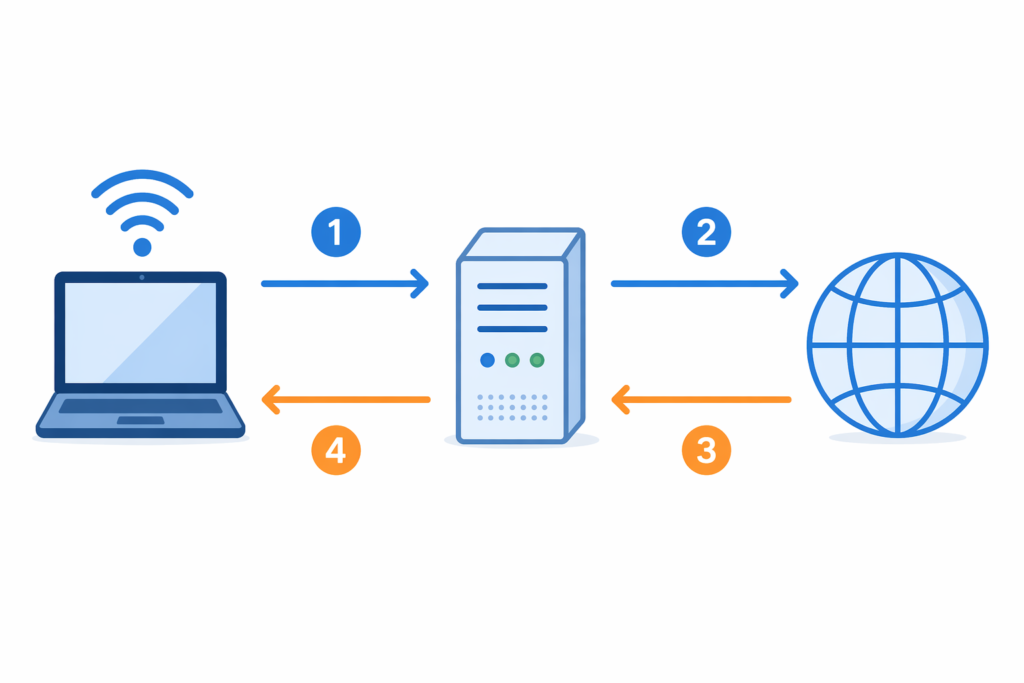
Step 1. You open a browser or app on your device and request a website, for example google.com.
Step 2. Instead of your device contacting google.com directly, it sends the request to the proxy server whose address is configured in your WiFi settings.
Step 3. The proxy server receives your request, checks it against any rules or filters, and if the request is allowed, forwards it to google.com on your behalf.
Step 4. Google.com responds to the proxy server, not to your device. Google sees the proxy server’s IP address, not yours.
Step 5. The proxy server receives the response from google.com and forwards it back to your device.
Step 6. Your browser displays the page as if you connected directly, but the entire exchange went through the proxy.
This entire process happens in milliseconds and is invisible to the user unless the proxy is slow or the request is blocked.
Types of Proxy Servers Used on WiFi Networks
Not all proxies work the same way. Here are the main types you will encounter when dealing with WiFi proxy settings.
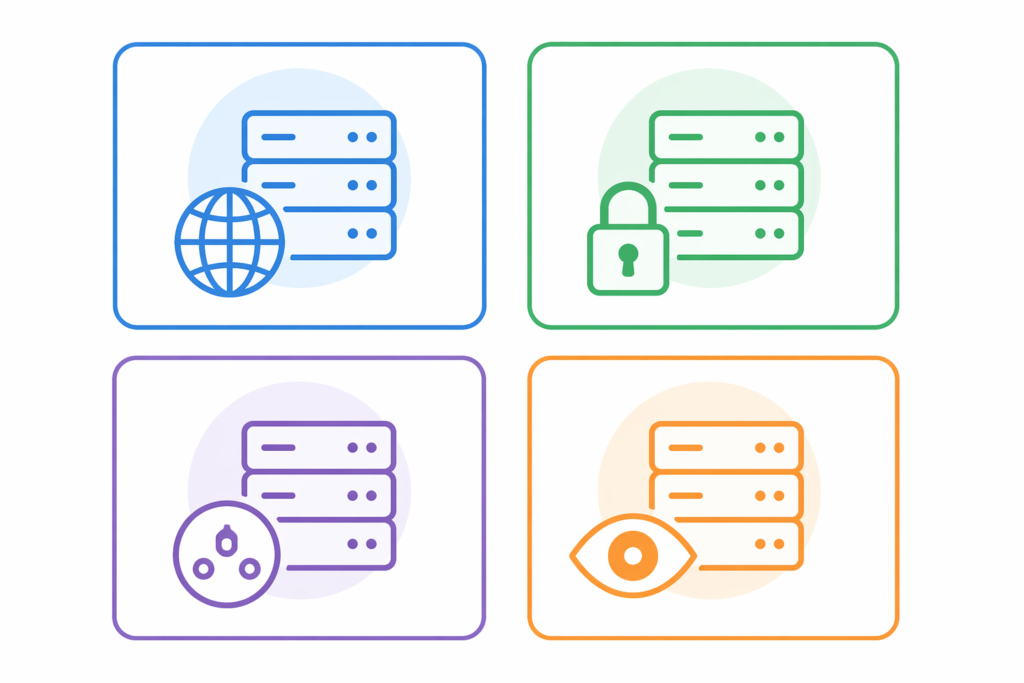
HTTP Proxy. This is the most common type. It handles regular web traffic using the HTTP protocol. When you set an HTTP proxy in your WiFi settings, it handles all standard browser requests. It does not encrypt traffic on its own, so it is not a privacy tool by itself.
HTTPS Proxy. Similar to an HTTP proxy but handles secure HTTPS traffic. It can operate in two ways: it either passes the encrypted tunnel through without reading the content (transparent mode), or it decrypts and re-encrypts traffic to inspect it (SSL inspection mode), which is common in corporate and school WiFi networks.
SOCKS Proxy. A more flexible, lower-level proxy that can handle any type of traffic, not just web browsing. SOCKS5 is the most current version and supports authentication and UDP traffic. It is commonly used for torrenting, gaming, and applications that go beyond standard HTTP.
Transparent Proxy. Also called an intercepting proxy. This type does not require any configuration on your device. The WiFi router or network gateway automatically routes your traffic through the proxy without you knowing. Many public WiFi networks and ISPs use transparent proxies. You do not need to enter any proxy address because it is applied at the network level.
Reverse Proxy. Unlike the others, a reverse proxy sits in front of a web server rather than in front of your device. When you visit a website, you might be talking to a reverse proxy that then fetches content from the real server. This is used by large websites for load balancing and security, not something you configure on your device.
Anonymous Proxy. Designed specifically to hide your identity online. It does not pass your real IP address to the destination server, providing a basic level of anonymity.
Proxy vs VPN on WiFi: What Is the Difference?
This is one of the most common questions when people learn about proxies on WiFi networks. Both a proxy and a VPN can hide your IP address and change where your traffic appears to come from, but they work very differently.
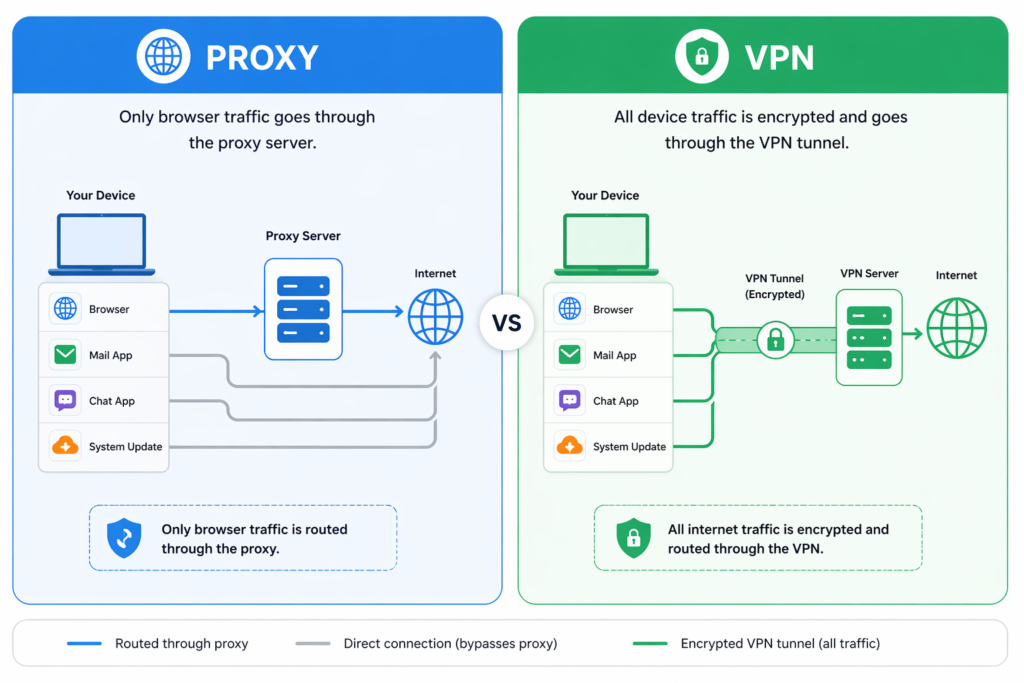
A proxy only handles traffic from a specific app or browser. If you set a proxy in your browser settings, only browser traffic goes through the proxy. Other apps on your device continue using your real IP address and direct connection.
A VPN, on the other hand, encrypts all traffic from your entire device at the operating system level. Every app, every service, and every connection goes through the VPN tunnel. VPNs also encrypt your data, which proxies typically do not do.
A proxy is faster than a VPN in most cases because there is no encryption overhead. A VPN is more secure and comprehensive because it covers everything and adds encryption.
For casual browsing privacy on a public WiFi hotspot, a VPN is a stronger choice. For bypassing a content filter on a school or office WiFi for specific apps, a proxy may be sufficient.
How to Set Up a Proxy on WiFi (All Devices)
Here is how to configure proxy settings on your WiFi connection across the most common platforms.
How to Set Up a Proxy on WiFi on Windows 11 and Windows 10
Open the Start menu and go to Settings. Click on Network and Internet. Select Proxy from the left sidebar. Under Manual proxy setup, toggle the switch to On. Enter the proxy server address (IP address or hostname) in the Address field. Enter the port number in the Port field. If your proxy requires a username and password, enter them when prompted. Click Save.
To confirm it is working, open your browser and visit a site like whatismyip.com. The IP address shown should be the proxy server’s address, not your own.
How to Set Up a Proxy on WiFi on iPhone and iPad (iOS)
Open the Settings app. Tap WiFi. Tap the information icon (i) next to the WiFi network you are connected to. Scroll down to the HTTP Proxy section. Tap Configure Proxy and select Manual. Enter the proxy server address in the Server field and the port number in the Port field. If authentication is required, toggle Authenticate On and enter your username and password. Tap Save.
How to Set Up a Proxy on WiFi on Android
Open the Settings app on your Android device. Tap Connections or Network and Internet depending on your Android version. Tap WiFi. Press and hold the WiFi network you are connected to, then tap Modify Network or tap the gear icon. Tap Advanced Options. Under the Proxy dropdown, select Manual. Enter the proxy hostname and proxy port. Tap Save.
Note: On Android, proxy settings apply per WiFi network, not globally across all connections.
How to Set Up a Proxy on WiFi on Mac
Click the Apple menu and go to System Settings (or System Preferences on older macOS versions). Click Network. Select your active WiFi connection on the left. Click Details (or Advanced on older versions). Click the Proxies tab. Check the box next to the proxy type you want to configure, such as Web Proxy (HTTP) or Secure Web Proxy (HTTPS). Enter the proxy server address and port number. Click OK and then Apply.
How to Set Up a Proxy on WiFi on a Router (Network-Wide)
Setting up a proxy on your router applies it to every device connected to that WiFi network automatically. The exact steps depend on your router brand, but the general process is:
Log in to your router’s admin panel by typing your router’s IP address into a browser. The default is usually 192.168.1.1 or 192.168.0.1. Go to the Advanced or WAN settings section. Look for a Proxy Server or HTTP Proxy option. Enter the proxy server address and port. Save and restart the router.
This is the method schools, offices, and smart homes use to apply proxy rules to every connected device without configuring each one individually.
Should I Use a Proxy on My WiFi?
Whether or not you should use a proxy depends on your specific situation.
You should use a proxy on your WiFi if you want to filter content for children on your home network, if your workplace or school requires it to access network resources, if you want basic anonymity while browsing, if you want to cache frequently accessed web content to save bandwidth, or if you need to access region-restricted content for legitimate purposes.
You should not rely on a proxy alone if you need strong security on a public WiFi hotspot, because proxies do not encrypt your traffic. In that situation, a VPN is a better choice. You should also avoid using random free proxy services from unknown providers, because untrustworthy proxies can log your traffic, inject ads into web pages, or even steal login credentials.
What Do the Proxy Settings Mean?
When you open WiFi proxy settings on any device, you will typically see these fields:
Proxy Hostname or Server Address. This is the IP address or domain name of the proxy server. For example, it might be something like 192.168.1.100 for a local network proxy or proxy.example.com for a remote one.
Port. This is the communication port the proxy listens on. Common proxy ports are 8080, 3128, and 80. Always use the exact port provided by your network administrator or proxy service.
Username and Password. Some proxy servers require authentication. If your proxy is password-protected, you will need to enter these credentials for your connection to work.
Bypass / Exceptions. This field lets you list addresses that should not go through the proxy. For example, you might want local network addresses or specific trusted domains to connect directly without routing through the proxy.
Auto (PAC file). Some organizations use a Proxy Auto-Configuration (PAC) file instead of manually entering an address. You enter the URL of the PAC file and your device downloads the configuration automatically. This is common in corporate environments where proxy rules are complex and change frequently.
What Is a WiFi Proxy Address?
A WiFi proxy address is simply the network address of the proxy server you want your device to connect through. It can be an IP address such as 203.0.113.45 or a domain name such as proxy.yourcompany.com. This address tells your device where to send its traffic before it goes to the wider internet. Without this address correctly entered, the proxy will not work and your internet connection may fail entirely if the device expects a proxy but cannot find one.
Is Using a Proxy on Public WiFi Safe?
Using a proxy on public WiFi adds a layer of separation between your device and the websites you visit, but it does not make your connection fully secure on its own. Here is what you need to know:
If the proxy does not use HTTPS, your traffic between your device and the proxy server is unencrypted. Anyone on the same public WiFi network can potentially intercept that traffic. A proxy only secures traffic from your device to the proxy server if an encrypted connection is used.
For genuine security on public WiFi, use HTTPS websites (look for the padlock icon in your browser), use a trusted VPN, and avoid accessing sensitive accounts like banking on unsecured public hotspots regardless of whether you have a proxy enabled.
A proxy is more useful on public WiFi for bypassing network-level restrictions than for security purposes.
Common Proxy Errors on WiFi and How to Fix Them
“Unable to connect to proxy server” This is the most common error. It usually means the proxy address or port number you entered is wrong, the proxy server is offline, or your WiFi network is blocking the proxy connection. Double-check the proxy address and port, confirm the proxy server is running, and try disabling and re-enabling your WiFi.
Proxy stops working after reconnecting to WiFi On Android in particular, proxy settings are saved per network. If you connect to a different WiFi network or your network name changes, you will need to re-enter the proxy settings for that network.
Some websites load but others do not This often happens when certain websites are blocked by the proxy. If a site loads without the proxy but not with it, the proxy server is filtering that content. Contact your network administrator if this is on a work or school network.
Slow internet speed on proxy A proxy adds a hop in your connection. If the proxy server is overloaded, geographically distant, or poorly maintained, it can slow down your browsing. Try a different proxy server or contact your provider.
Login pages and captive portals not loading Some hotel and airport WiFi networks use a captive portal that requires you to log in before granting internet access. Having a proxy configured can interfere with this process. Temporarily disable your proxy settings, complete the login page, then re-enable the proxy.
How to Disable a Proxy on WiFi
If you want to turn off a proxy on your WiFi connection, the steps are simply the reverse of enabling it.
On Windows, go to Settings, Network and Internet, Proxy, and toggle Manual proxy setup to Off.
On iPhone or iPad, go to Settings, WiFi, tap the network, scroll to HTTP Proxy, tap Configure Proxy, and select Off.
On Android, go to WiFi settings, modify the network, open Advanced Options, change the Proxy setting from Manual to None, and save.
On Mac, go to System Settings, Network, select your WiFi, click Details, go to the Proxies tab, and uncheck all proxy options.
If your internet stops working or you see proxy errors on a device you have not configured yourself, the proxy may have been set automatically by a network or by malware. Check your proxy settings and if an unknown proxy address is configured, remove it and run a malware scan.
Frequently Asked Questions About Proxy in WiFi
What does proxy mean in WiFi settings? Proxy in WiFi settings means you are configuring your device to route its internet traffic through a proxy server rather than connecting to websites directly. The proxy acts as an intermediary between your device and the internet.
Should proxy be on or off on WiFi? For most home users, proxy should be off unless you have a specific reason to use one. Leaving proxy settings enabled without a working proxy server will cause your internet to stop working entirely. Turn it on only if you have a valid proxy address from a trusted source.
Does using a proxy slow down WiFi? It can. A proxy adds an extra network hop, which increases latency. The actual impact depends on the proxy server’s location, speed, and load. A well-maintained local or nearby proxy may have no noticeable impact, while a distant or overloaded one can significantly slow browsing.
Can I use a proxy to bypass WiFi restrictions? In some cases yes, but it depends on how the restrictions are implemented. If the restriction is applied at the DNS level, a proxy can bypass it. If the network itself blocks proxy traffic or filters by deep packet inspection, a proxy alone may not be sufficient.
Is proxy the same as VPN on WiFi? No. A proxy reroutes traffic for a specific app or browser without encrypting it. A VPN encrypts all traffic from your entire device. VPNs are more secure. Proxies are faster and easier to configure for specific use cases.
What is a proxy server address for WiFi? A proxy server address is the IP address or hostname of the proxy you want to connect through, combined with a port number. For example, 203.0.113.10:8080 where the first part is the address and 8080 is the port.
Can someone see what I do on WiFi with a proxy? If the proxy is controlled by your network administrator, school, or employer, yes, they can potentially see the sites you visit through it. If you are using your own trusted proxy or VPN, others on the WiFi network cannot easily see your traffic. Always assume that a proxy you did not set up yourself may be logging your activity.
Summary
A proxy in WiFi is an intermediary server that sits between your device and the internet, routing your traffic through itself before it reaches its destination. It is used for privacy, content filtering, access control, caching, and bypassing geographic restrictions.
Setting up a proxy on your WiFi is straightforward on all major platforms including Windows, iPhone, Android, Mac, and directly on your router for network-wide coverage. The key information you need is the proxy server address, port number, and any authentication credentials.
For everyday home users, a proxy is not usually necessary unless you have a specific goal in mind. For businesses, schools, and network administrators, a properly configured proxy is an essential tool for managing what happens on the network. And for anyone dealing with privacy on public WiFi, combining a proxy with HTTPS browsing or a full VPN gives you meaningful protection.
Last updated: April 2026. All steps and settings are verified for current versions of Windows 11, iOS, Android, and macOS.

Abdullah Zulfiqar is a cybersecurity and application security writer at PrivacyReport.org, where he focuses on AI-driven security, privacy protection, and SaaS application risk analysis. His work explores how modern AI systems and digital platforms handle sensitive user data, with a strong emphasis on identifying vulnerabilities, preventing data leaks, and improving software security practices.
He writes about the intersection of artificial intelligence and cybersecurity, helping readers and developers understand emerging threats in AI-powered applications and how to build more secure, privacy-respecting systems.
Leave a Reply