
Your OpenAI API key is exposed. The short answer is: revoke it first, and do it now. Everything else — the replacement key, the usage check, the spending cap, finding how it leaked — comes after, because none of it matters while the old key still works.
An OpenAI API key is a bearer credential. Whoever holds the string can call OpenAI’s models and the bill goes to your account. There is no password prompt, no second factor and no “are you sure” step on the other end. OpenAI’s own guidance puts it plainly: a compromised key gives someone access to your account quota without your consent, which can mean unexpected charges, a drained monthly quota and your own app suddenly unable to call the API.
This is also more common than most vibe coders expect. GitGuardian’s State of Secrets Sprawl 2026 counted 28.65 million new hardcoded secrets in public GitHub commits in 2025, up 34% on the year before. Secrets for AI services were the fastest-growing category: about 1.28 million, up 81%. And when GitGuardian retested credentials it had confirmed valid in 2022, over 64% were still valid in January 2026. A leaked key does not die on its own. Only revoking it ends the access.
This article is the first-hour plan for exactly that situation: an OpenAI API key exposed, and what to do in the next sixty minutes. The plan below is in order, using OpenAI’s own dashboard and docs. It assumes you are not a security engineer. You need one browser tab and about an hour.
First, work out which key leaked
OpenAI has more than one kind of key, and they live in different places. Revoking the wrong one wastes the minutes that matter.
| Key type | What it looks like | Where it lives | What it can do |
|---|---|---|---|
| Project key | sk-proj-... | The API keys page, inside its project | Calls the API and bills that project. This is the key new keys are. |
| Legacy user key | sk-... | The API keys page | The older format, from before projects existed. Still works if it was never deleted. |
| Admin key | sk-admin-... | Admin keys settings, not the API keys page | Can manage the organisation, including creating new API keys. Revoke this one first if it leaked. |
| Service account key | sk-svcacct-... | The API keys page, owned by a service account | Belongs to an app, not a person. This is what OpenAI recommends as an application’s identity instead of a developer’s personal key. |
If you are not sure which one leaked, check the first characters of the exposed string. The prefix tells you the type. If an admin key leaked, treat it as the most urgent of the four: whoever holds it can create fresh keys, so revoking the leaked project key alone does not close the account.
One more check before you start: look at your inbox. OpenAI disables a key it detects on the public internet, or leaked inside an app in an app store, immediately, and emails the owner. If your app worked yesterday and suddenly returns a 401 error today, right after a push to a public repository, the key may already be dead and the email is waiting for you. That is good news for the bill, but do not rely on it: it only covers keys OpenAI itself detects, in public places. A key in a private repository, a screenshot, a chat message or a third-party tool is not covered. Revoke it yourself either way.
Minutes 0–5: revoke the key
Go to the API keys page on the OpenAI platform, switch to the right project first — keys belong to projects, and a key revoked in the wrong project is still live in the right one — and delete the leaked key. If an admin key leaked, delete it from the admin keys settings instead. Deleting takes effect immediately.
OpenAI’s advice for a key you believe has leaked is to rotate it immediately from the API keys page. Note the order: for a planned rotation, OpenAI says to create the replacement first, update your apps, verify it works, and only then revoke the old key. For a leak, that order is wrong. The old key is already public, so delete it right away and accept a few minutes of downtime in your app. A broken feature for ten minutes costs you nothing. A live key costs you per request, for as long as someone holds it.
Do not start by deleting the key from your code or your repository. That helps nobody: anyone who already copied the string still has it, and it stays in your git history, in forks and in clones. Revoking is what kills the key everywhere at once.
Minutes 5–15: issue the replacement properly
Now create the new key, in the right project, and do it the way you will wish you had done it the first time.
Give it an expiry date. Project keys can be created with an expiration date, after which requests from them are rejected. OpenAI strongly recommends this, and since September 2026 administrators can also enforce a maximum key lifetime at the organisation or project level, so new keys cannot be created without an end date. Set one. A key that expires on its own limits the damage of the next leak, whenever it happens.
Restrict its permissions. A key does not need every permission. When you create it, choose the narrowest permissions the app actually needs — read-only where that is enough — instead of the default of all permissions. A leaked read-only key is still a problem, but it is a smaller one.
Put it somewhere that is not the repository. The new key goes into your server’s environment variables or your hosting platform’s secrets store, never into source code, a committed .env file or a chat message. OpenAI’s SDKs look for a variable called OPENAI_API_KEY by default. Set it there, redeploy every place that used the old key — production, previews, CI, that cron job you forgot about — and test one call before moving on.
Test the new key with a single read-only call:
curl https://api.openai.com/v1/models \
  -H "Authorization: Bearer $OPENAI_API_KEY"
A list of models means the key works. A 401 means the key is wrong, revoked or disabled. A 429 means you are out of credits or have hit a spending limit, which is a billing problem, not a key problem. Test the old key the same way: it should now return 401. If it does not, you revoked the wrong key — go back and check the project and the key type.
Minutes 15–30: check what the key was used for
Go to the Usage page on the OpenAI platform, select the affected project, and group the usage by API key. This is where the key-type and tracking details matter.
Usage is tracked per key for keys generated after 20 December 2023. If your leaked key is older than that, tracking may not have been switched on, and its earlier usage shows as “Untracked” in the dashboard. You can switch tracking on for it going forward, but you cannot recover the untracked history. For a key created after that date, the Usage page will show you what it did, when, and on which models.
Look for four things, and compare them against the exposure window — the time between the key first appearing somewhere public and the minute you revoked it:
- Models you do not use. If your app only calls a small chat model and the usage shows image or embedding models, or a far more expensive model, that was not you.
- Volume you do not recognise. A sharp rise in requests or tokens that does not match your own traffic.
- Hours you were not working. Requests at 3 a.m. your time, or a steady stream through the night.
- Requests from places you are not. The dashboard will not give you attacker IP addresses, but unusual geography in your account’s security history is a clue worth noting.
Save what you find. Take dated screenshots of the Usage page, note the key’s name and the dates, and keep them. You will need them in the next step, and if you contact OpenAI Support, they will ask for exactly this.
Also check the rest of your account while you are there. OpenAI’s account security page lets you review your security history and active sessions. If you see sign-ins or sessions you do not recognise, the problem is bigger than one key: change your password, log out of all sessions, and treat it as an account compromise, not just a leaked key. Changing your password does not revoke an API key, and revoking a key does not end a signed-in session — they are separate credentials and need separate fixes.
Minutes 30–45: cap what the next leak can cost
A leaked OpenAI key bills per request, and OpenAI’s API is pay-as-you-go, priced per token. The whole point of this step is to put a ceiling on the next leak before it happens, while you are already in the dashboard.
Set a monthly spend limit with hard enforcement. In the project’s Limits settings you can set a monthly spend limit and turn on hard enforcement. This is the setting that matters. Spend alerts alone only send you an email; they do not stop API traffic. A hard limit stops affected API traffic when tracked spend reaches it. Two honest caveats from OpenAI’s own docs: a hard limit can block legitimate requests, and spend may slightly exceed the limit because enforcement is not instantaneous. Set the limit anyway, at a number your real usage never reaches. A busy attacker can only go slightly over it.
Set alert thresholds as well. OpenAI’s account security guidance suggests setting more than one threshold, such as 90% and 95% of your monthly budget, at the organisation or project level. An alert is not a defence, but it is how you find out about the next leak within the hour instead of at the end of the month.
Turn on IP allowlisting if your app runs on fixed servers. IP allowlisting restricts which IP addresses can access the OpenAI API from your account. When it is on, requests from any other address are rejected even if they include a valid API key. If your backend runs on a server with a stable address, this turns a leaked key into a useless string for anyone not on that server. It does not help if your app calls OpenAI from users’ browsers or phones — but your app should not be doing that anyway, for exactly this reason.
If your app does call OpenAI from the browser or a mobile app, that is the leak. OpenAI’s guidance is direct: never deploy a key in a client-side environment, because anyone who opens the app can take the key and make requests on your behalf. Move the call to your own backend server and keep the key there. Our earlier guide explains the same fix in detail for any provider, not just OpenAI.
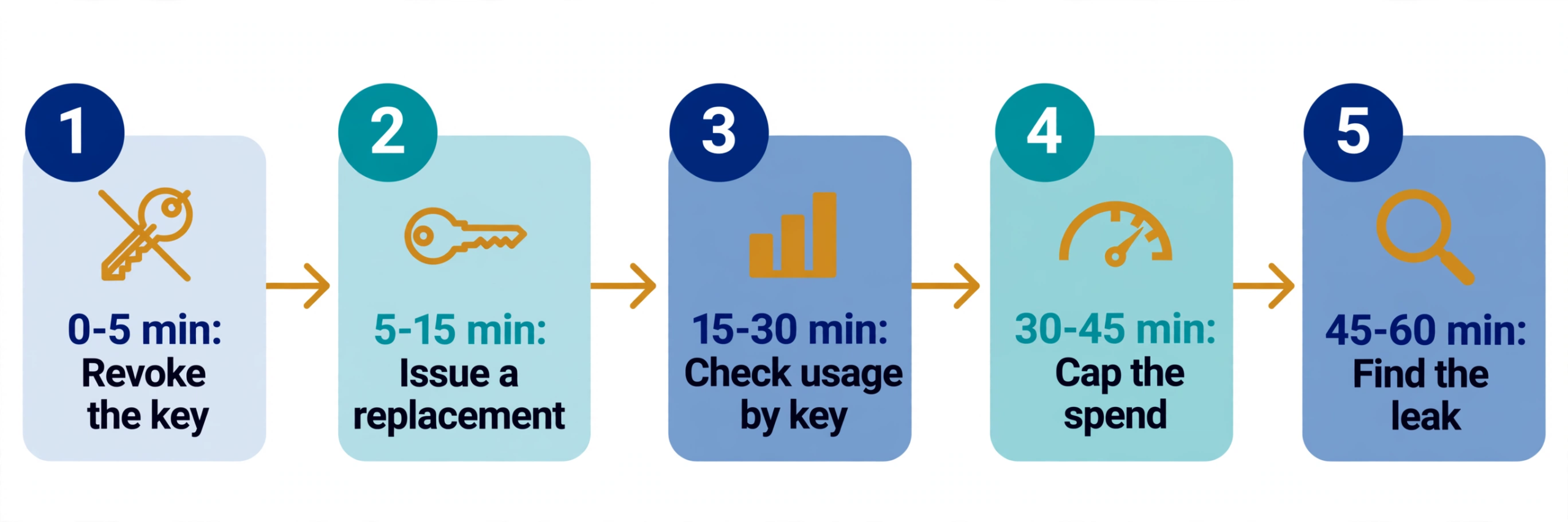
Minutes 45–60: find how it leaked, and close that path
Revoking the key stops the bleeding. Finding the leak stops the next one. Work through the places OpenAI keys actually escape from, in the order that matters for a vibe-coded app:
- The repository. Search the whole repository and its history for
sk-proj-andsk-, not just the current files. A key deleted in a later commit is still in the history, in forks and in clones. If it is there, assume it was copied. - The shipped app. Open your live site, press F12, go to Sources, and search the loaded JavaScript for
sk-. A key bundled into frontend code is public to every visitor, and it is the most common way a vibe-coded app leaks one — usually through aNEXT_PUBLIC_orVITE_variable, which are public by design. - The
.envfile. Check whether.envwas ever committed, shared in a chat, pasted into a support ticket, or included in a screenshot. Check your.gitignoreactually lists it. - Third-party tools. Any service you pasted the key into — an AI coding tool, a no-code platform, a monitoring service, a shared workspace — is a place it could have escaped from. Check what each one stores and who can see it.
- CI and logs. Build logs, error trackers and crash reports sometimes print environment variables. Search them for the key prefix.
Then fix the path, not just the key. Two controls from GitHub are worth switching on, and both are free for public repositories:
- Secret scanning. GitHub scans every public repository for known secret formats. OpenAI keys are a partner pattern: when GitHub finds one, it forwards it to OpenAI, which can revoke it. That is the safety net that may already have disabled your key — but it only covers public repositories, and only keys in a format GitHub recognises.
- Push protection. Push protection blocks a push that contains a detected secret before it lands. For individual users it is on by default for public repositories. For a repository it is off by default and an administrator has to switch it on. Switch it on.
Add a pre-commit scanner such as Gitleaks or TruffleHog as well, so a key is caught on your own machine before it ever reaches GitHub. And remember the order GitHub itself gives for cleaning up: if the sensitive data is a secret, the first step is to revoke or rotate it. Once the key is revoked, rewriting the repository’s history “may not be warranted” — the key is already dead everywhere. If you still want the history cleaned, GitHub documents git-filter-repo (version 2.47 or later, with the --sensitive-data-removal flag) as the tool, followed by a force push. That is a cleanup job for tomorrow, not a first-hour job, and it cannot retrieve copies already downloaded by someone else.

What about the bill?
Do not assume the charges will be refunded. OpenAI’s own guidance for an exposed key is three steps: delete the key, review your usage and keep the details, and contact Support. Its help pages do not promise a refund for leaked-key charges.
So contact Support with evidence, not just a complaint. Open a chat from any OpenAI Help Center page and include the key’s name, the dates it was exposed, the usage you found that was not yours, and the screenshots you saved. If you suspect fraud, OpenAI also has a Fraudulent Activity webform — choose “Report unauthorized activity involving my account”. Keep a copy of everything you send. Whether or not any charge is reversed, the usage record is what proves what happened, and it is also what you need if the key was used in a way that broke OpenAI’s terms — unauthorised usage can put your own account at risk, so reporting it protects you as well as your bill.
After the first hour: make the next leak boring
The goal is not to never leak a key again. The goal is for the next leak to be a ten-minute annoyance instead of an hour of panic. Five changes do that:
- One key per project, per environment, per purpose. If every app and every script shares one key, any leak means revoking the key production runs on. Separate keys mean you revoke one and the rest keep working — and per-key usage tracking tells you exactly which key was abused.
- Expiry dates on every key, enforced by a maximum lifetime. Set an expiration date when you create a project key, and have an administrator enforce a maximum key lifetime at the organisation or project level so no new key can be created without one. These controls arrived in September 2026; most older guides do not mention them.
- Service account keys for apps, not personal keys. Use a project service account for an application’s identity instead of depending on an individual developer’s key. When someone leaves the project, their key goes with them and the app keeps working.
- Restricted permissions by default. Give each key only the permissions its app needs. A read-only key that leaks is still a problem, but it cannot do the damage a full-permissions key can.
- Spend limits, alerts and IP allowlisting switched on before you need them. A hard monthly limit, alert thresholds at 90% and 95%, and IP allowlisting for server-side apps. These are settings you configure once, on a quiet day, and they are what stands between a leaked key and an unlimited bill.
Then verify the fix. Test the new key with one call, confirm the old key returns 401, search your shipped JavaScript for sk- once more, and run a scan of your live app. If you would rather not grep bundles by hand, PrivacyReport’s free scanner checks your live app for exposed keys and open tables — run it after you rotate, and again after your next publish. It takes about a minute, and it is the fastest way to confirm the new key stayed on the server where it belongs.
FAQs
How do I know if my OpenAI key was actually used by someone else?
Check the Usage page, grouped by API key, for the window between the key going public and you revoking it. Look for models you do not use, volume that does not match your traffic, and requests at hours you were not working. Keys generated after 20 December 2023 have per-key tracking on by default; older keys may show their earlier usage as “Untracked”, which you cannot recover.
Will OpenAI disable my leaked key for me?
Sometimes. An OpenAI API key exposed on the public internet is disabled by OpenAI immediately, and the owner is emailed; the same applies to a key leaked inside an app in an app store. GitHub’s secret scanning also forwards OpenAI keys found in public repositories to OpenAI. But that only covers keys OpenAI or GitHub detects, in public places. A key in a private repository, a screenshot, a chat message or a third-party tool is not covered. Revoke it yourself and treat any automatic disabling as a bonus, not your defence.
Can I just change the leaked key’s permissions instead of deleting it?
No. Reducing the permissions limits the damage, but the credential is still in unauthorised hands and still works. OpenAI’s guidance for a key you believe has leaked is to rotate it immediately. Delete it, create a replacement with the permissions you actually need, and move on.
My key stopped working right after I pushed to GitHub. What happened?
Most likely OpenAI or GitHub found it. OpenAI disables keys it detects on the public internet, and GitHub forwards OpenAI keys found in public commits to OpenAI. Check your inbox for a message from OpenAI about a leaked key — the key is already dead, but you still need a replacement, a usage check and the fix for how it got into the repository.
Do I need to rewrite my git history to remove the key?
Probably not. GitHub’s own guidance says that when the sensitive data is a secret, the first step is to revoke or rotate it, and once that is done, rewriting history may not be warranted — the revoked key cannot be used for access anywhere, including in old commits, forks and clones. Rewrite the history only if the commits contain other sensitive material that rotation cannot neutralise, and use git-filter-repo if you do.
What is the difference between a project key and an admin key?
A project key (sk-proj-...) calls the API and bills one project. An admin key (sk-admin-...) manages the organisation, including creating new API keys. Admin keys live in a separate settings page from API keys. If an admin key leaks, revoke it first — whoever holds it can create fresh keys, so revoking a project key alone does not close the account.
Sources
- OpenAI — Best practices for API key safety
- OpenAI — Keeping your OpenAI account secure
- OpenAI — How can I report fraud or suspicious activity?
- OpenAI — Production best practices
- GitHub — Supported secret scanning patterns
- GitHub — Removing sensitive data from a repository
- GitGuardian — The State of Secrets Sprawl 2026
Related reading
- What Happens If Your API Key Is Exposed? Real Costs and a 10-Minute Fix Plan
- What to Do If Your API Key Is Exposed
- How to Keep API Keys Away From Claude Code, Cursor and Other AI Agents
- Firebase API Key Exposed on GitHub: Is It Actually a Problem?
- Is a .env File Secure? What It Protects and What It Doesn’t
- Copy-Paste Security Prompts for Vibe Coders (Cursor, Lovable, Replit, Claude)
- Is Your Lovable App Leaking the Supabase Service Role Key?
- How to Hide an API Key From the Browser Network Tab (and Why You Can’t)
- Free Security Scanner for Vibe-Coded Apps: Check Yours in 60 Seconds
