

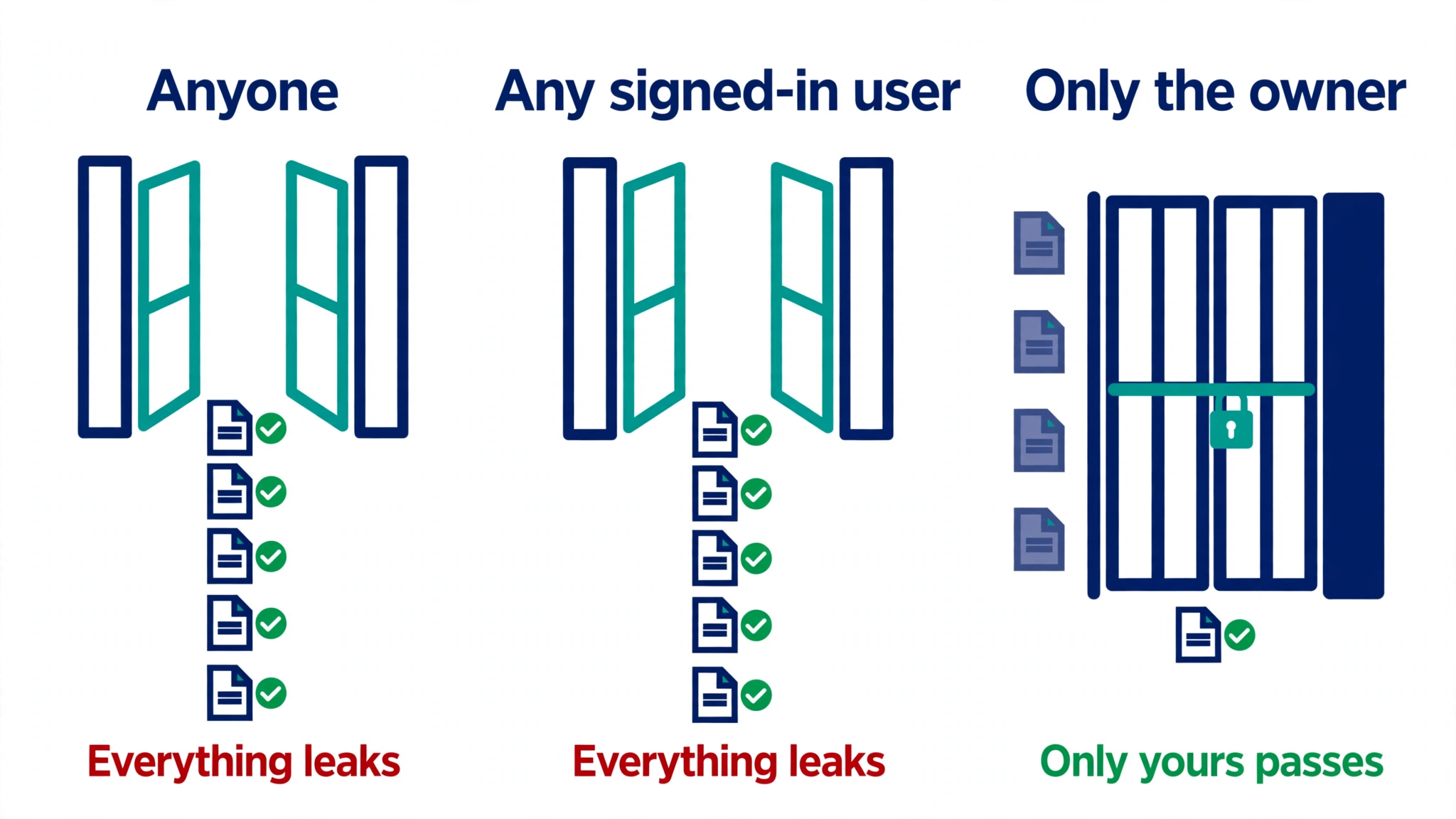
"Authenticated" is not the same as "authorised". That one distinction is the whole article. If your Firebase rules say request.auth != null, you have not limited access to the right people. You have limited it to anyone who can create a free account — including an anonymous account, which takes about ten seconds and no email address. Every template below starts from that fact, and every template is written so you can paste it, change the collection names, and test it before you trust it.
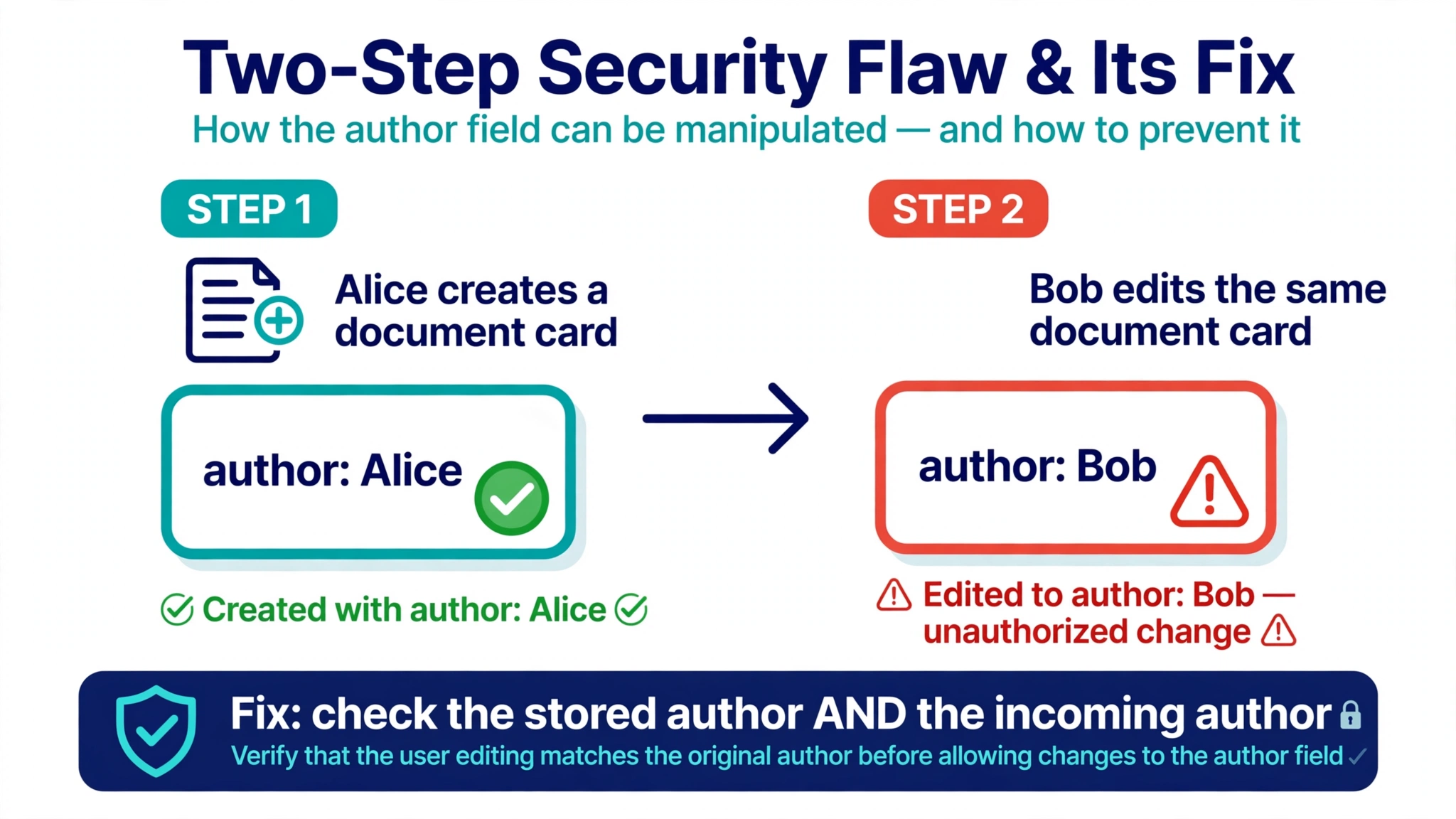
Here is the short answer. For a document that belongs to one person, check that the signed-in user's ID matches the owner: request.auth.uid == userId when the ID is in the path, or request.auth.uid == resource.data.authorId when it is a field on the document. For a document anyone may read but only its owner may change, allow public reads and check ownership on every write — and on updates, check the stored author field and the incoming author field, or a caller can hand the document to themselves. For admin access, use custom claims set from your server, not a field in the database that users can edit. The rest of this guide gives you the ten templates, the six mistakes that break them, and a ten-minute test for each one.
How Firebase rules work in 60 seconds
Firebase Security Rules are the access control for Cloud Firestore, Realtime Database and Cloud Storage. Each product has its own rules file, and each one defaults to denying access: in Firestore and Realtime Database, locked mode denies every user, and in Cloud Storage only authenticated users can reach a bucket. Nothing is open until a rule opens it, which is the safe starting point — the danger is the rule you add afterwards.
Four things about how rules behave decide whether your templates hold.
Rules deny by default, and an error means deny. If no allow rule matches a request, it is refused. If a rule throws an error — for example, reading a field on a document that does not have it — the request is refused too. A rule that fails closed is a feature; use it.
Any matching allow grants access. If one rule says yes, the request is allowed, even if ten other rules say no. A single broad rule anywhere in the file overrides every narrow rule beneath it. This is the mechanism behind most of the mistakes in this guide.
Rules are not filters. A list query is checked against the rules before any document is returned. If the query could return a document the caller may not read, the whole query is refused — Firebase does not silently filter the results down to the allowed ones. Your app's queries must match your rules, not just your data.
The Admin SDK bypasses rules entirely. Code running with a service account — your server, a Cloud Function, the Firebase Admin SDK — is trusted and ignores Security Rules. Rules protect you from clients: browsers, phones, and anyone with your public Firebase config and a free account.
Start every Firestore rules file with rules_version = '2'; on the first line. Version 2 is the current rules language, and it is required for collection group queries. Two variables do most of the work in the templates below: request.auth, which is null when nobody is signed in and otherwise holds the user's ID in request.auth.uid plus their token claims; resource, the document as stored; and request.resource, the document as it would look after the write. The difference between resource and request.resource is where the update bypass lives, and template 2 shows it.
The one mistake: "any signed-in user"
The most copied Firebase rule on the internet is also the most dangerous one:
rules_version = '2';
service cloud.firestore {
  match /databases/{database}/documents {
    match /notes/{noteId} {
      allow read, write: if request.auth != null;
    }
  }
}
Read it as a stranger would. It does not say "only the owner of this note". It says "anyone with an account". Firebase's own documentation is blunt about it: "While we don't recommend leaving your data accessible to any user that's signed in, it might be useful to set access to any authenticated user while you're developing your app." Development is the key word. Firebase warns project owners about fully open rules (if true) and emails them before test-mode rules expire, but there is no console warning for a rule that lets any signed-in user read and write everything. Google's own words, given in reply to a vulnerability report, were that there is no such warning — and Google closed that report as "Won't Fix (Intended Behavior)" in January 2026.
The scale of the mistake is measured. Firewreck 2.0, published in January 2026, scanned the top 1.5 million Android apps and found 11,126 with insecure Firebase projects exposing 1,432,693,875 user records — 1.43 billion. An earlier scan in March 2024 covered 5.2 million domains and found at least 900 websites with misconfigured Firebase databases, leaving at least 125 million user records publicly accessible, including about 19.87 million passwords stored in plain text. These are not stories about the Firebase key leaking. The key is public by design. They are stories about rules that checked whether someone was signed in, and stopped there.
Firebase Security Rules for authenticated users: the templates
Every template below is written for Firestore unless it says otherwise, and every one assumes Firebase Authentication is already wired up. Change the collection and field names to match your app, then test with the method at the end of this guide. A template you have not tested is a guess, not a rule.
1. Owner-only profile
Use this for a document that belongs to one person and lives at a path containing their user ID: profiles, settings, private notes. This is the pattern Firebase's own documentation recommends for content-owner access.
rules_version = '2';
service cloud.firestore {
  match /databases/{database}/documents {
    match /users/{userId} {
      allow read, write: if request.auth != null
                         && request.auth.uid == userId;
    }
  }
}
Only the user whose ID is in the path can read or write their own document. Anyone else — signed in or not — gets "Missing or insufficient permissions". Note that this allows a get of one document, not a list of the whole users collection: a list query would have to prove it only returns documents the caller owns, and rules are not filters, so the collection query is refused. Fetch one profile at a time with a document read.
2. Owner-only document, owner stored as a field
Use this when the owner is a field on the document rather than part of its path: notes, tasks, journal entries. This template contains the most important line in the whole guide — the update rule checks two things, not one.
rules_version = '2';
service cloud.firestore {
  match /databases/{database}/documents {
    match /notes/{noteId} {
      allow read, delete: if request.auth.uid == resource.data.authorId;
      allow create: if request.auth != null
                    && request.auth.uid == request.resource.data.authorId;
      allow update: if request.auth.uid == resource.data.authorId
                    && request.auth.uid == request.resource.data.authorId;
    }
  }
}
Why the update rule checks both fields: resource.data.authorId is the author stored in the database, and request.resource.data.authorId is the author in the document the caller is trying to save. If the update rule checked only the incoming field, a caller could take any note, set its authorId to their own ID, and own it — the rule would pass, because the incoming document now names them as the author. Checking both fields means the caller must already be the owner and must stay the owner. The same applies to create: the incoming document must name the caller as its author, or anyone could create notes in someone else's name.
3. Public read, owner write
Use this for content anyone may read but only its owner may change: blog posts, public listings, shared pages. This is Firebase's own mixed public-and-private example, with the field name changed to authorId.
rules_version = '2';
service cloud.firestore {
  match /databases/{database}/documents {
    match /posts/{postId} {
      allow read: if true;
      allow create: if request.auth != null
                    && request.auth.uid == request.resource.data.authorId;
      allow update: if request.auth.uid == resource.data.authorId
                    && request.auth.uid == request.resource.data.authorId;
      allow delete: if request.auth.uid == resource.data.authorId;
    }
  }
}
allow read: if true is a deliberate choice here, not a mistake: the posts are meant to be public. What stays private is the write path. If your content is not meant to be public, do not copy the read line — use template 2 instead.
4. Signed-in create, with validation
Use this when anyone signed in may create a post, but the post must arrive in the shape your app expects. Rules can check the incoming document's fields, types and required keys, which stops a caller from saving a document with a missing title, a number where text belongs, or an authorId that is not theirs.
rules_version = '2';
service cloud.firestore {
  match /databases/{database}/documents {
    match /posts/{postId} {
      allow read: if resource.data.published == true
                  || request.auth.uid == resource.data.authorId;
      allow create: if request.auth != null
                    && request.auth.uid == request.resource.data.authorId
                    && request.resource.data.keys().hasAll(['title', 'content', 'authorId', 'published'])
                    && request.resource.data.title is string
                    && request.resource.data.content is string
                    && request.resource.data.authorId is string
                    && request.resource.data.published is bool;
      allow update: if request.auth.uid == resource.data.authorId
                    && request.auth.uid == request.resource.data.authorId
                    && request.resource.data.diff(resource.data).affectedKeys()
                       .hasOnly(['title', 'content', 'published']);
      allow delete: if request.auth.uid == resource.data.authorId;
    }
  }
}
Three things to notice. First, reads are limited to published posts, plus the author's own drafts — an unpublished draft is invisible to everyone else. Second, create requires the four fields and their types, so a document with a missing title, a numeric authorId, or no published flag is refused before it is stored. Third, update limits which fields may change: title, content and the published flag only. The author field cannot be changed at all, which closes the update bypass from template 2 by construction. If your app needs to change other fields, add them to the list deliberately — never leave the list open.
5. Shared documents: members and admins
Use this for documents a small group shares: a team project, a shared household list, a collaborative document. The document carries two lists of user IDs, and the rules check membership in the list.
rules_version = '2';
service cloud.firestore {
  match /databases/{database}/documents {
    match /projects/{projectId} {
      allow read: if request.auth != null
                  && request.auth.uid in resource.data.members;
      allow create: if request.auth != null
                    && request.auth.uid in request.resource.data.admins;
      allow update, delete: if request.auth != null
                            && request.auth.uid in resource.data.admins;
    }
  }
}
Members can read; only admins can change or delete. Note the update check reads the stored admins list, not the incoming one — a member cannot promote themselves by submitting an update that adds their own ID to admins, because the rule checks the list as it stands before the write. The gap to watch: whoever creates the project chooses the first admins, so create must require the caller to list themselves as an admin, which this template does. And if a member list grows large, remember that a rule which checks membership still has to fetch the document being checked — that is one read, not one per member.
6. Admin-only, with custom claims
Use this for anything only an administrator may touch: an admin panel, moderation queues, site settings. The role lives in the user's authentication token as a custom claim, not in a database field a user could edit.
rules_version = '2';
service cloud.firestore {
  match /databases/{database}/documents {
    match /admin/{docId} {
      allow read, write: if request.auth != null
                         && request.auth.token.admin == true;
    }
    match /posts/{postId} {
      allow read: if true;
      allow create: if request.auth != null
                    && request.auth.uid == request.resource.data.authorId;
      allow update: if (request.auth.uid == resource.data.authorId
                      && request.auth.uid == request.resource.data.authorId)
                    || request.auth.token.admin == true;
      allow delete: if request.auth.uid == resource.data.authorId
                    || request.auth.token.admin == true;
    }
  }
}
Claims are set from trusted server code only, with the Admin SDK — never from the client, where any caller could grant themselves the claim:
const admin = require('firebase-admin');
await admin.auth().setCustomUserClaims(uid, { admin: true });
Two things to know. First, the claim reaches the user's token after their next sign-in or token refresh — setting it does not take effect for a session that is already open until the token is refreshed. Second, keep the total claims payload under 1 KB and use claims for coarse roles only; fine-grained permissions belong in the rules themselves, as in templates 2 and 5. Do not store a role in a Firestore document the user can write to and then trust it in a rule: a user who can edit their own role field to "admin" has just promoted themselves.
7. Roles stored in the database
Use this when roles change often, or when you already keep user records in Firestore and do not want a server step to set claims. The rule reads the caller's user document and checks a role field.
rules_version = '2';
service cloud.firestore {
  match /databases/{database}/documents {
    function isAdmin() {
      return request.auth != null
          && get(/databases/$(database)/documents/users/$(request.auth.uid)).data.role == 'admin';
    }
    match /settings/{docId} {
      allow read, write: if isAdmin();
    }
  }
}
The cost is real and worth stating. Every get() inside a rule is a billed Firestore read, and a request may make at most 10 get(), exists() and getAfter() calls for a single-document request or a query — 20 for multi-document reads, transactions and batched writes — after which the request fails with "permission denied". A list query that checks a role for every document it touches will hit that ceiling fast. If a role is checked on nearly every request, put it in a custom claim (template 6) instead, where it costs nothing and travels with the token. And protect the users collection itself with template 1, or a user can edit their own role field and the check becomes decoration.
8. Verified email only
Use this when an account must prove it owns its email address before it can read or write. Firebase puts email_verified in the authentication token, so the rule costs no extra read.
rules_version = '2';
service cloud.firestore {
  match /databases/{database}/documents {
    match /members/{docId} {
      allow create: if request.auth != null
                    && request.auth.token.email_verified == true
                    && request.auth.uid == request.resource.data.authorId;
      allow read, update, delete: if request.auth != null
                    && request.auth.token.email_verified == true
                    && request.auth.uid == resource.data.authorId;
    }
  }
}
This stops throwaway accounts created with an email address the caller does not control. It does not stop a caller who verifies an address they do own — verification proves control of an inbox, not good intent — so treat it as one layer, not the whole defence. Some sign-in providers verify the address automatically; for email and password sign-in, the user must click the verification link your app sends.
9. Storage: owner-only uploads, and images only
Firestore rules do not cover files. Cloud Storage has its own rules, and a vibe-coded app that locks its database and forgets its bucket has locked the front door and left the garage open. These two patterns cover the common cases.
service firebase.storage {
  match /b/{bucket}/o {
    // Each user's own files, under a folder named with their user ID
    match /user/{userId}/{fileName} {
      allow read, write: if request.auth != null && request.auth.uid == userId;
    }
    // Public image uploads: any signed-in user may read,
    // but uploads must be images under 5 MB
    match /images/{imageId} {
      allow read: if request.auth != null;
      allow write: if request.auth != null
                   && request.resource.size < 5 * 1024 * 1024
                   && request.resource.contentType.matches('image/.*');
    }
  }
}
The size and type checks run on the server before the file is stored, so a caller cannot upload a 2 GB video or an executable by editing your client code — the rule rejects it whatever the app sends. Two warnings: request.resource.size and contentType describe what the caller claims to upload, and a file's extension is not checked, so a renamed executable with an image content type still needs a download-side check if your app serves files to other users. And remember that Storage rules default to requiring authentication; if your app shows avatars to signed-out visitors, the read rule above will block them — use a public read for the avatar folder deliberately, or serve the files through a signed URL from your server.
10. Realtime Database: owner-only, and the cascade
Realtime Database rules look different — JSON, not the Firestore language — and they behave differently in one way that catches everyone. Rules cascade downwards: a rule at a shallow path overrides deeper ones, and a child rule can only grant additional access, never take back access granted above it. A .read of true at the top of your tree opens every node below it, and no rule underneath can close it again.
{
  "rules": {
    "users": {
      "$uid": {
        ".read": "auth !== null && auth.uid === $uid",
        ".write": "auth !== null && auth.uid === $uid"
      }
    }
  }
}
Each user reads and writes only the node named with their own ID. Two differences from Firestore to keep straight: the variable is auth, not request.auth, and the wildcard is $uid, not {userId}. And check the top of your rules file first — if anything above users grants read or write, this owner-only rule changes nothing.
How to test each template before you trust it
A pasted rule is a guess until a request proves it. Test every template with three callers: signed out, signed in as user A, and signed in as user B. For each template, the expected results are: the stranger gets nothing, A gets only A's data, and B gets only B's data. If B can read or change A's document, stop — that is a launch-blocking leak, not a rough edge.
The fastest way to run that test is the Rules Playground in the Firebase console. Open Firestore, Realtime Database or Storage, click the Rules tab, then Rules Playground. Pick the operation — get, list, create, update or delete — the document path, and the caller: unauthenticated, anonymous, or a specific user ID. Fill in the document's data, press Run, and the banner tells you allowed or denied. Note that the Playground runs against the rules in the editor, not the rules you last deployed, so deploy first and then test the live file, or you may test a version that never shipped.
For repeatable tests, use the Firebase emulator: firebase emulators:start --only firestore, with unit tests that sign in as different users and assert that the right requests succeed and the wrong ones fail. And once the app is live, run the stranger test against the real thing — open the app signed out and as a second account, and try to open another user's data. Our audit guide walks through the full method, including the test-mode expiry trap and the emulator setup, step by step.
Deploying is one command per product — firebase deploy --only firestore:rules, database or storage — and a rule change can take up to a minute to affect new queries and up to ten minutes to reach active listeners, so wait before you conclude a fix did not work.
Six copy-paste mistakes that break good templates
| Mistake | What happens | Fix |
|---|---|---|
allow read, write: if request.auth != null; on a collection |
Any signed-in user — including an anonymous account — reads, edits and deletes every document in it | Check ownership on every rule: request.auth.uid == userId or request.auth.uid == resource.data.authorId |
Update checks only request.resource.data.authorId |
A caller sets the author field to their own ID and takes over someone else's document | Check both fields on update: the stored author and the incoming author |
A broad match /{document=**} allow anywhere in the file |
Any matching allow grants access, so the broad rule overrides every narrow template below it | Delete the broad rule; write one match per collection, and search the file for /{document=**} before deploying |
| A list query with no filter that matches the rules | Rules are not filters, so the whole query is refused with "Missing or insufficient permissions" | Query for what the rule allows — filter by the owner field or the document ID — or fetch documents one at a time |
A role check with get() on every document |
Each check costs a billed read, and a list hits the 10-call limit and fails | Put roles that are checked often in custom claims; use get() only for rare checks |
| A read granted at the top of a Realtime Database tree | The grant cascades down, and no child rule can take it back | Grant reads at the deepest path that needs them, and check the top of the file first |
The 10-minute check for your rules
Run this on a project you own, with throwaway test data. It is the short version of the full audit in our Firebase rules auditor guide.
- Read the deployed file (2 minutes). In the Firebase console, open each product's Rules tab and read what is actually deployed — Firestore, Storage and Realtime Database each have their own file. Search for
if true,request.auth != nullon its own, and/{document=**}. Any of those on a real collection is a finding, not a style choice. - The stranger test (2 minutes). Signed out, try to open a document that belongs to a user. Then try to write one. Both must fail. If either succeeds, the rule is open to the whole internet, not just to signed-in users.
- The two-user test (4 minutes). Create two test accounts. Signed in as A, try to open B's document, edit it, and delete it. Then sign in as B and try A's. Every attempt must fail. Then, as A, try to change your own document's
authorIdfield to B's ID. If it works, the update rule checks only the incoming field — fix it with template 2. - Storage and the list query (2 minutes). Upload a file to another user's folder in Storage; it must fail. Then run your app's list query as a normal user; if it fails with "Missing or insufficient permissions" while single reads work, the query does not match the rules — add the owner filter rather than loosening the rule.
- After the ten minutes. Re-run the stranger test and the two-user test after every change that touches data, because a coding agent that adds a collection will usually add it with the loosest rules that make the app work.
If all five pass, your rules held against a stranger and a second user. That is a useful signal, not a certificate. Rules are the last line of defence your clients meet — test them like an attacker would, not like the developer who wrote them.
The short version
"Authenticated" means Firebase knows who the caller is. It does not mean the caller is allowed to touch that document. The rules that hold check ownership on every operation — the user ID in the path, or the author field on the document, checked on both the stored and the incoming copy for updates — and they keep roles in custom claims set from the server, not in fields users can edit. The ones that fail check only that someone is signed in, and the 2026 scans show what that costs: 11,126 insecure Firebase projects and 1.43 billion records in one study alone, with no console warning to catch it.
PrivacyReport's free scanner checks your live app from outside, the way a stranger would see it, including whether your rules are actually enforced — run it now, and again after every change that touches your data.
FAQs
What does request.auth != null mean in Firebase rules? It means someone is signed in — any account, including an anonymous one created with no email address. It says nothing about which documents that person may touch. Firebase's own documentation recommends limiting write access further than this check.
Can any signed-in user read my data if I use request.auth != null? Yes, if that is the only check on the collection. Any signed-in user can read, edit and delete every document the rule covers. Restrict each rule to the owner with request.auth.uid == userId or request.auth.uid == resource.data.authorId.
How do I allow only the owner of a document to read it? If the owner is in the path, use match /users/{userId} with allow read, write: if request.auth != null && request.auth.uid == userId. If the owner is a field, use allow read: if request.auth.uid == resource.data.authorId, and check both the stored and incoming author fields on update.
Do Firebase rules apply to the Admin SDK? No. The Admin SDK and Cloud Functions run with a service account and bypass Security Rules entirely. Rules protect you from clients — browsers, phones, and anyone with your public Firebase config. Anything that must bypass the rules belongs on your server.
How do I test Firebase security rules? Use the Rules Playground in the Firebase console, which simulates a request as an unauthenticated, anonymous or specific user against the rules in the editor. For repeatable tests, use the Firebase emulator with unit tests that assert the right requests succeed and the wrong ones fail. Then run the stranger test and the two-user test against the live app.
Why does my list query fail with "Missing or insufficient permissions" when single reads work? Because rules are not filters. A list query is checked before any document is returned, and if it could return a document the caller may not read, the whole query is refused. Add a filter that matches the rule — for example, where the author field equals the signed-in user's ID — instead of loosening the rule.
How do I give an admin access with Firebase rules? Set a custom claim from your server with the Admin SDK — admin.auth().setCustomUserClaims(uid, { admin: true }) — then check it in the rule with request.auth.token.admin == true. Never store a role in a database field the user can edit, and never set claims from client code.
Sources
- Firebase — Basic Security Rules
- Firebase — Security Rules and Firebase Authentication
- Firebase — Understand Firebase Security Rules for Cloud Storage
- Firebase — Structure security rules
- Firebase — Avoid insecure rules
- Firebase — Get started with Cloud Firestore Security Rules
- Firebase — Quickly validate Firebase Security Rules (Rules Playground)
- MrBruh — Firewreck 2.0
- Greenlight Scan — Firebase Security Rules check: the open rule Firebase won't warn you about
- The Register — Millions of user records exposed by 900 sites via Firebase
Related reading
- Firebase Security Rules Auditor: How to Audit Your Rules for Free
- Is the Firebase API Key Secret? What Really Protects Your Data
- Firebase API Key Exposed on GitHub: Is It Actually a Problem?
- Supabase Security Checklist for Vibe-Coded Apps (2026)
- How to Test Supabase RLS Policies (Free RLS Tester Options Compared)
- Vibe-Coded App Security Checklist: 25 Checks Before You Launch
- Copy-Paste Security Prompts for Vibe Coders (Cursor, Lovable, Replit, Claude)
- Is a .env File Secure? What It Protects and What It Doesn't
- How to Secure a Vibe-Coded App: A Non-Technical Founder's Guide
- How to Keep API Keys Away From Claude Code, Cursor and Other AI Agents
- Is Your Lovable App Leaking the Supabase Service Role Key?
- Free Security Scanner for Vibe-Coded Apps: Check Yours in 60 Seconds
