
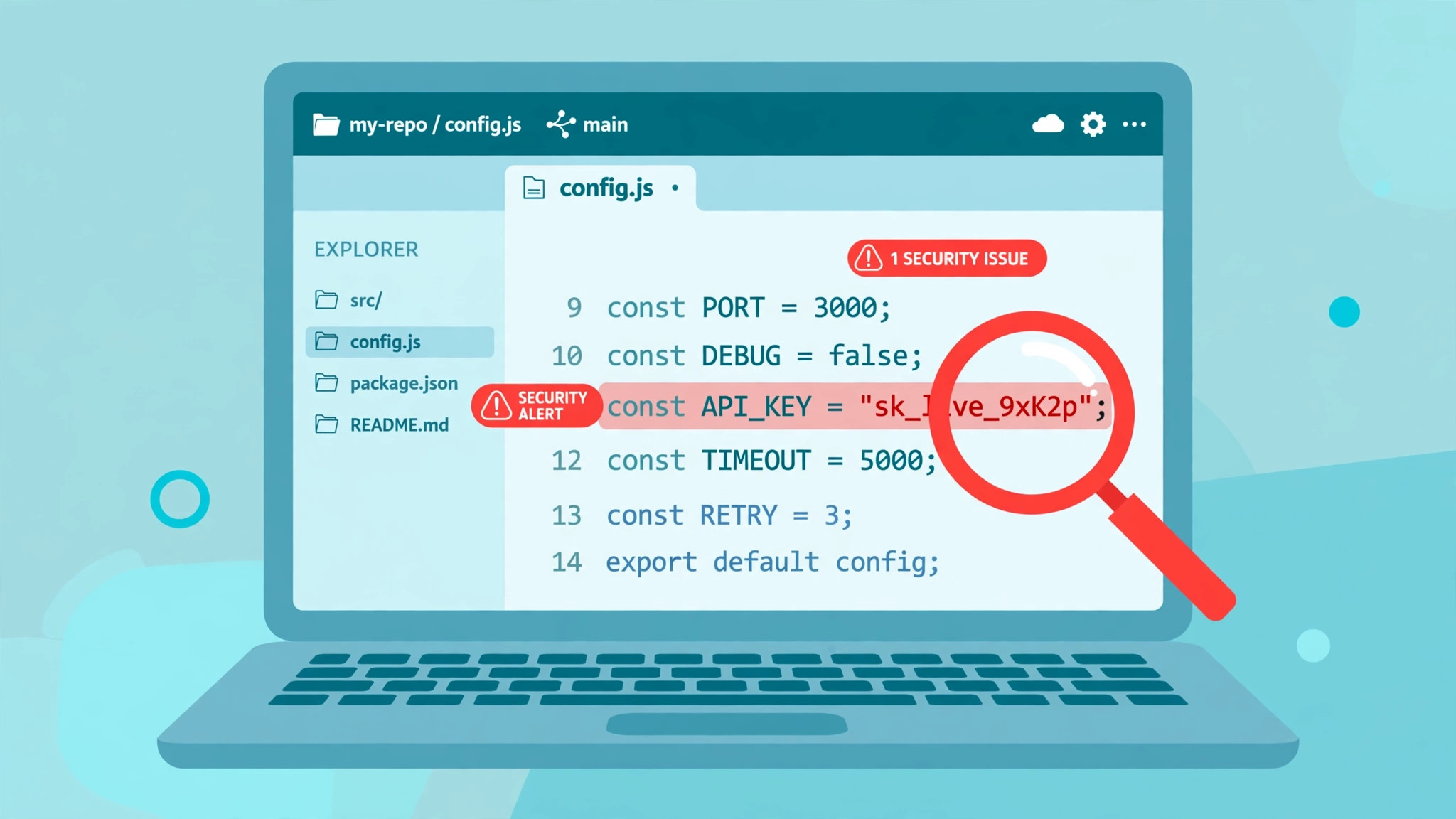
You got an alert: an API key was detected in your repository. The short answer is: treat the key as compromised, revoke it now, and read the alert properly before you do anything else. Deleting the file or the commit does not fix it. The key is still in your git history, in forks and in clones, and automated scanners can find a secret in a public commit within minutes.
That alert is GitHub’s secret scanning doing its job. It found a string that matches a known credential format — an API key, a token, a private key — somewhere in your repository, including its history. This article explains what each part of the alert means, what to do in what order, and how to make sure the next one never reaches the repository at all. It assumes you are not a security engineer. You need one browser tab, your provider’s dashboard, and about an hour.
What the alert actually is
GitHub secret scanning looks through your repository — the whole git history, on all branches — for hardcoded credentials: API keys, passwords, tokens and other known secret types. When it finds one, it opens an alert in the repository’s Security and quality tab, with details about the exposed credential.
There are two different paths, and the difference matters because it decides whether you will even see an alert:
| Alert path | What happens | Where you see it |
|---|---|---|
| Partner secret | GitHub reports the leak directly to the provider (for example OpenAI, Stripe, AWS). The provider can revoke the key. | You do not see this in your repository alerts. The provider may email you instead. |
| User secret | GitHub opens an alert in your repository. | Security and quality tab, under secret scanning alerts. |
So the absence of an alert proves nothing. A secret may not match any pattern GitHub recognises, or secret scanning may not be switched on for that repository. Secret scanning is free for public repositories. For private repositories it is part of GitHub Secret Protection, on GitHub Team and GitHub Enterprise Cloud plans. If your repository is private and you never switched it on, there is nobody watching.
The alert can reach you in more than one way: an email from GitHub, a notification in the Security tab, or an email from the provider whose key was found. Whichever way it arrived, the fix is the same. Do not assume the provider has already revoked the key. GitHub says the provider “may” revoke a partner-reported secret — that is not a promise, and it does not cover keys in private repositories or formats GitHub does not recognise.
Step 1: read the alert before you touch anything
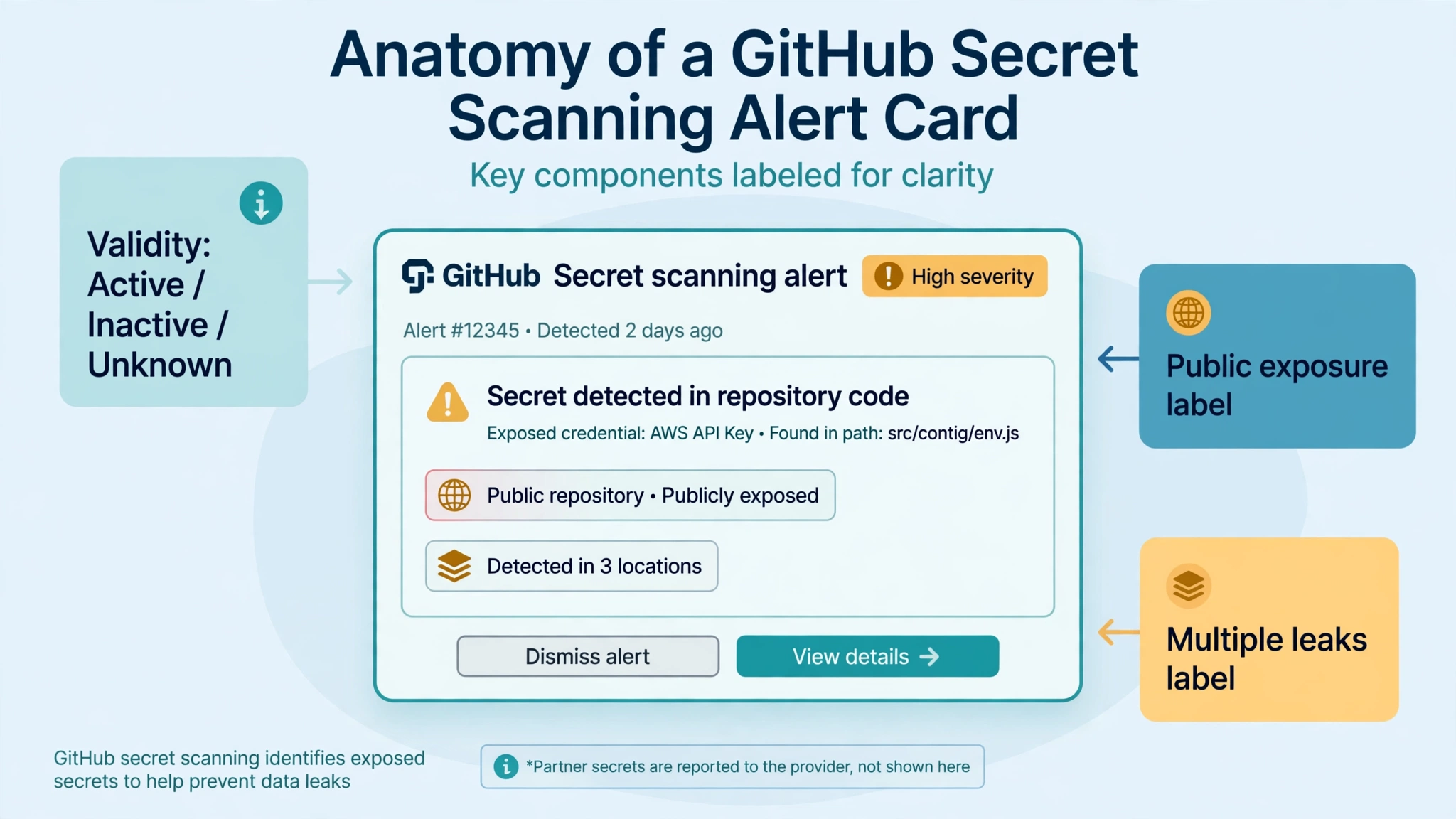
Open the alert and read it field by field. It tells you more than “a key leaked”, and what it says decides how urgent the next step is.
Validity status. The alert may say whether the secret is still active, inactive, or whether its validity is unknown. This is the first thing to check. An active key is the most urgent case. But two honest limits apply: validity checks only exist for certain secret types, and the provider is always the most reliable source of truth. If the alert says “unknown”, do not read that as safe. Treat the key as live until the provider’s own dashboard says otherwise.
The public exposure label. This tells you the secret was leaked in a public repository. If it is there, assume the key was copied. Automated scanners watch the public commit stream continuously, and GitHub’s own guidance is blunt: scanners can locate publicly exposed secrets in minutes, and they can be exploited within hours. A public exposure is a high-risk leak by definition.
The multiple leaks label. This means the same secret appears in more than one place. One revoked key fixes all of them, but you need to find every copy when you clean up later — the same string may sit in a second file, a second branch, or a second repository.
PAT metadata. If the leaked secret is a GitHub personal access token, the alert can show when it was last used and what access scope it has. A token that was used yesterday and can write to repositories is a different problem from a read-only token that has never been used.
What kind of secret it is, and who owns it. The alert names the secret type and the provider — an OpenAI API key, an AWS access key, an SSH private key. Work out who created it and which services use it, because that decides what breaks when you revoke it. If you do not have secret scanning switched on and found the leak another way, you can do the same assessment yourself: check whether the repository is public, whether the secret shows signs of recent use, whether the file is a production deployment script or a test file, and whether it is a database credential or an admin key.
A note on what the alert is not: it is not a verdict on your code, and it is not always right. A test key, a placeholder string or an example value can trip a detector. GitHub keeps tuning its detectors — in November 2026 it added a Starlink detector and tightened ten others to cut false positives. If the alert is a false positive, you can close it as one. But close it only after you have checked. A real key dismissed as a false positive is the worst outcome in this whole process.
Step 2: revoke the key — before cleaning anything
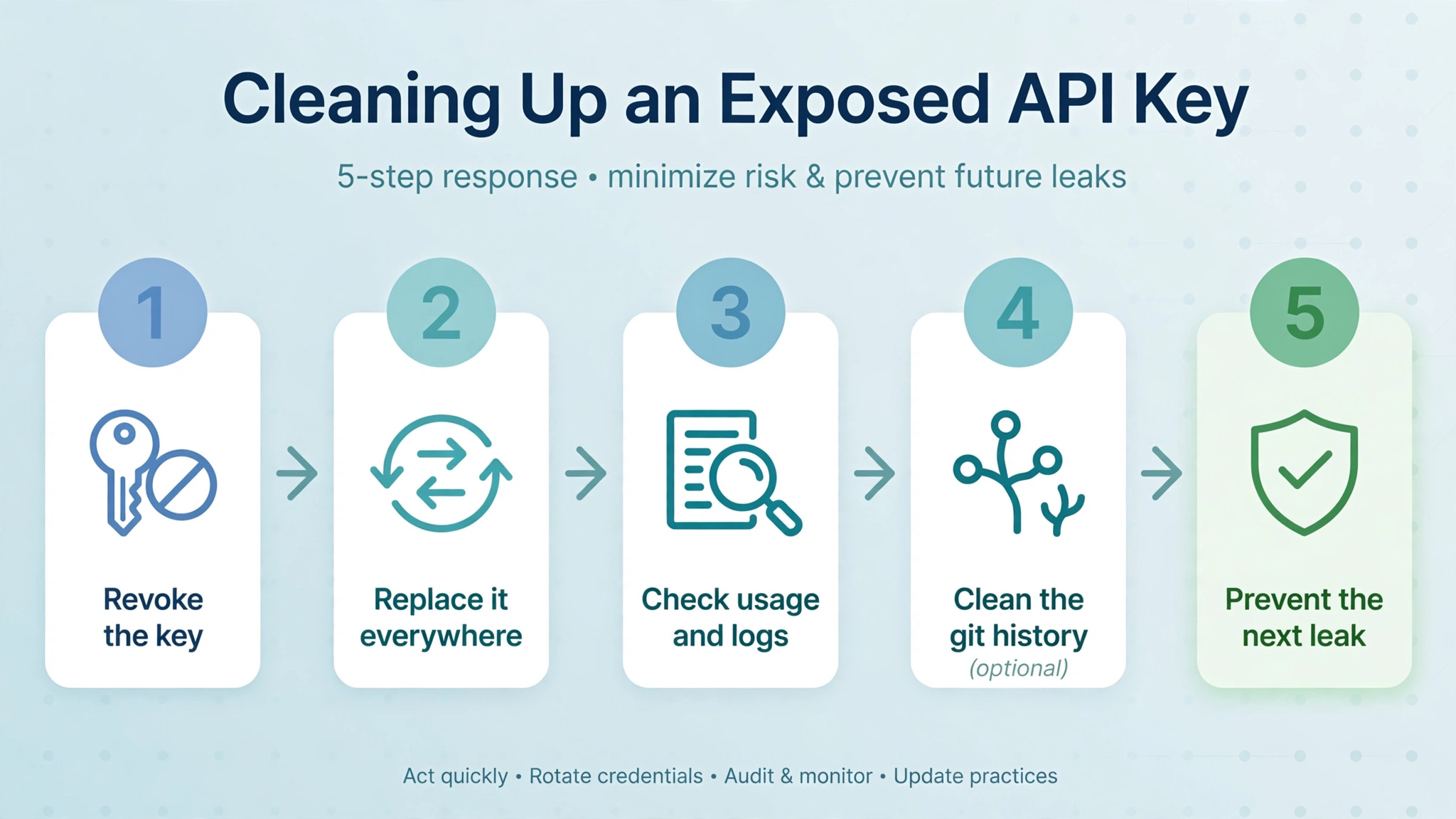
This is the step that actually ends the exposure. Revoke the key with its provider, right now, before you touch the repository.
GitHub’s own guidance is direct: consider any leaked secret immediately compromised, and simply removing it from the codebase, pushing a new commit, or deleting and recreating the repository does not prevent it from being exploited. The key stays valid until the provider kills it, wherever the string happens to live.
How you revoke depends on the provider. The pattern is the same everywhere: sign in to the provider’s dashboard, find the key, delete or roll it, and create a replacement.
| Provider | Where to revoke |
|---|---|
| OpenAI | Platform → API keys → delete the key (admin keys live in a separate Admin keys page) |
| Stripe | Dashboard → API keys → roll the secret key |
| AWS | IAM → Users → Security credentials → deactivate, then delete the access key |
| GitHub | Settings → Developer settings → Personal access tokens → delete |
| Supabase | Dashboard → Project settings → API → rotate the service role key (the anon key is public by design and is not the problem) |
If your provider is not listed, search for “[service name] revoke API key” and do it now. If you do not have access to the provider’s dashboard, contact the person who created the key — the secret owner — and get them to revoke it. Do not wait for a meeting about it.
One exception to the order: if revoking immediately would take down a production service and you cannot afford the downtime, create the replacement key first, move the application onto it, and then revoke the old one. That is the only reason to delay revocation, and it is a delay of minutes, not days. For a high-risk secret — still active, in a public repository, or a production credential — GitHub’s advice is to prioritise revoking immediately.
GitHub already does one piece of this for you: it automatically revokes GitHub personal access tokens leaked in public repositories. For a GitHub token leaked in a private repository, you can report the leak to GitHub from inside the alert. For other providers, the provider decides.
Step 3: update everything that used the old key
Once the old key is dead, every service that used it needs the replacement. Miss one and something breaks quietly — a deployment, a scheduled job, a preview environment, a CI workflow.
Search for every copy of the old string, not just the file the alert named. GitHub’s own tutorial suggests using code search across your organisation:
# Search your whole organisation for the leaked string
org:YOUR-ORG "SECRET-STRING"

# Or just your repository
repo:YOUR-REPO "SECRET-STRING"
Check the repository’s stored secrets and deploy keys too — Settings, then Secrets and variables, then Deploy keys — and any installed GitHub Apps or integrations that may use the secret. Then update the application with the new key, in the right place: your server’s environment variables or your hosting platform’s secrets store, never back into source code.
Test the replacement before moving on. One call with the new key should work; one call with the old key should fail. If the old key still works, you revoked the wrong key — go back and check the provider, the project and the key type.
Step 4: check whether the key was already used
Revoking stops future use. It does not tell you what happened while the key was live. Check the provider’s usage logs and billing for the window between the key first appearing somewhere public and the minute you revoked it. Look for models, services or regions you do not use, volume that does not match your own traffic, and requests at hours you were not working.
Also check GitHub’s audit logs for events relating to the secret and its usage — the security log for your personal account, or the audit log for your organisation. If the leaked secret was a GitHub token, the audit log can show what it did. Access depends on your role, so you may need an organisation owner to help.
Save what you find. Take dated screenshots, note the key’s name and the dates, and keep them. You will need them if you contact the provider’s support about unauthorised charges, and they are the record of what happened if anyone asks later.
How common is this, really? GitGuardian’s State of Secrets Sprawl 2026 counted 28.65 million new hardcoded secrets in public GitHub commits in 2025, up 34% on the year before. Secrets for AI services were the fastest-growing category: about 1.28 million, up 81%. And when GitGuardian retested credentials it had confirmed valid in 2022, over 64% were still valid in January 2026 — a leaked key does not die on its own. A smaller, more recent count makes the same point: between 1 and 21 October 2026, LeakWatch found 1,106 credentials that were still accepted by their provider in 858 public repositories on GitHub and GitLab — about 55 a day. When they re-tested those keys, 43% had already been revoked by their owner. The other 57% were still live.
Step 5: clean the history — and know when not to
Only now, with the key revoked and the services updated, should you think about the repository’s history. This is the step most guides start with, and it is the step that matters least.
Deleting the file in a new commit does not remove the secret. Git keeps every version of every file in every commit. Anyone who can access the repository can check out the old commit and read it. Adding .env to .gitignore does not help either — .gitignore does not remove files Git is already tracking. If .env was committed, you need git rm --cached .env to stop tracking it, and that still leaves the history.
If you decide to clean the history, GitHub documents git-filter-repo (version 2.47 or later) as the tool, with the --sensitive-data-removal flag:
# Remove a file from every commit in the history
git filter-repo --path .env --invert-paths

# Or scrub a specific key value from every commit
git filter-repo --replace-text <(echo 'YOUR-LEAKED-KEY==>REMOVED')

# Then force-push the rewritten history
git push --force
Back up the repository first with a mirror clone, and warn anyone else who works on it: force-pushing rewrites history, and collaborators will need to re-clone or reset. Forks and clones still hold the old history, and you cannot reach those. That is the point of doing the revocation first — the copies out there hold a dead key.
But GitHub’s own guidance says rewriting history “may not be warranted” once the secret is revoked, because the revoked key “can no longer be used for access” anywhere, including in old commits, forks and clones. Decide with your repository’s security leads, or by yourself if you are the whole team, weighing the disruption against your compliance obligations. Rewrite the history if the commits contain other sensitive material that rotation cannot neutralise — a database password that cannot be rotated, personal data, a private key with no revocation path. Otherwise, the revoked key sitting in an old commit is harmless, and the force-push is optional.
Step 6: close the alert properly
Once the key is revoked and the services are updated, go back to the alert and close it. In the repository’s Security tab, select Close as and mark the alert “Revoked”. That is the resolution that says what actually happened. If the secret turned out to be a false positive, close it as a false positive instead. If it was a test credential, close it as used in tests.
Then write down what happened: what leaked, when, how it got in, what you revoked, what you checked, and what you changed so it does not happen again. A short note in your team’s knowledge base — or a comment on the closed alert — is enough. The next leak will be handled by someone in a hurry, and that note is what they will read.
How to stop the next alert
The alert you just handled was the safety net. The goal is to never need it. Four controls do that, in the order that matters most:
Push protection. This is the single most effective change. Push protection blocks a push that contains a detected secret before it lands in the repository, instead of alerting you afterwards. It covers partner patterns, generic patterns such as private keys and database connection strings, custom patterns you define, and — in public preview — unstructured secrets such as passwords found by AI from the surrounding code. Two versions exist, and they are not the same:
| Push protection | Default | What it does |
|---|---|---|
| For users | On by default | Stops you pushing supported secrets to any public repository |
| For repositories | Off by default | Blocks pushes to that repository; needs a repository administrator to switch it on |
Switch the repository version on. It is in Settings, under Advanced Security or Code security and analysis, depending on the current interface. While you are there, look at delegated bypass: by default anyone with write access can bypass a push-protection block by giving a reason, and that bypass creates an alert and an audit-log entry. The reason matters — “I’ll fix it later” leaves an open alert, while “used in tests” and “false positive” close it automatically. Delegated bypass lets you restrict who can bypass and who can approve someone else’s bypass request.
A pre-commit scanner. Add a scanner such as Gitleaks or TruffleHog as a pre-commit hook, so a secret is caught on your own machine before it ever reaches GitHub. Push protection is the net; the pre-commit hook is the check before you even push.
Secrets where they belong. Keys go in environment variables or your hosting platform’s secrets store, never in source code, a committed .env file, a chat message or a screenshot. Check that .gitignore actually lists .env, and that the file was never committed in the first place. Our earlier guide on whether a .env file is secure explains what that file does and does not protect.
Regular rotation. Rotate secrets on a schedule, not only after a leak. A key that is rotated every few months limits the damage of the next leak to the window since the last rotation. Set expiry dates on keys where the provider supports them.
Then verify the fix. Search your repository and its history for the key’s prefix, check the Security tab for open alerts, and run a scan of your live app. If you would rather not grep bundles by hand, PrivacyReport’s free scanner checks your live app for exposed keys and open tables — run it after you rotate, and again after your next publish. It takes about a minute, and it is the fastest way to confirm the new key stayed on the server where it belongs.
FAQs
What does “API key exposure detected in your repository” mean?
It means GitHub’s secret scanning found a string matching a known credential format in your repository, including its history, and opened an alert in the repository’s Security and quality tab. Treat the key as compromised. The alert itself does not prove the key was used — but it does prove the key is now visible to anyone who can read the repository.
I deleted the file with the key. Am I safe?
No. Deleting a file in a new commit leaves the old commit in the history, and the key is still readable there, in forks and in clones. The only step that makes the key useless is revoking it with the provider. History cleanup is a separate, optional job that comes after revocation.
GitHub says the secret’s validity is unknown. What do I do?
Treat it as live. Validity checks only exist for certain secret types, and the provider is the most reliable source of truth. Check the provider’s dashboard or usage logs to confirm whether the key still works, and revoke it either way.
Will GitHub or the provider revoke the key for me?
Sometimes, and you should not rely on it. GitHub automatically revokes GitHub personal access tokens leaked in public repositories, and it reports partner secrets found in public repositories to the provider, which may revoke them. That does not cover keys in private repositories, formats GitHub does not recognise, or providers that choose not to act. Revoke it yourself.
Do I have to rewrite my git history?
Probably not. GitHub’s own guidance says that once the secret is revoked, rewriting history may not be warranted, because the revoked key cannot be used for access anywhere. Rewrite the history only if the commits contain other sensitive material that rotation cannot neutralise, and use git-filter-repo if you do.
I got a push protection bypass alert. What happened?
Someone pushed a commit containing a detected secret and chose to bypass the push-protection block, giving a reason. The bypass created an alert and an audit-log entry. If the reason was “I’ll fix it later”, the alert is still open — go and fix it. If it was “used in tests” or “false positive”, GitHub closed it automatically. Check the alert to confirm the reason was honest.
What if there is no alert, but I know a key was committed?
No alert does not mean no leak. The value may not match a supported pattern, or secret scanning may not be switched on for that repository. Follow the same steps anyway: revoke the key, update the services, check usage, and switch secret scanning and push protection on.
Sources
- GitHub — Remediating a leaked secret in your repository
- GitHub — Secret scanning
- GitHub — Push protection
- GitHub — Removing sensitive data from a repository
- GitHub — Supported secret scanning patterns
- GitGuardian — The State of Secrets Sprawl 2026
- LeakWatch — Accidentally pushed an API key to GitHub?
- freeCodeCamp — How to Fix a Leaked API Key
- DataHogo — Exposed API Key on GitHub — Fix It Now
- RottenWiFi — How to Find and Remove Exposed Secrets from GitHub
Related reading
- What to Do If Your API Key Is Exposed
- What Happens If Your API Key Is Exposed? Real Costs and a 10-Minute Fix Plan
- OpenAI API Key Exposed? What to Do in the Next Hour
- Firebase API Key Exposed on GitHub: Is It Actually a Problem?
- Is a .env File Secure? What It Protects and What It Doesn’t
- How to Keep API Keys Away From Claude Code, Cursor and Other AI Agents
- Copy-Paste Security Prompts for Vibe Coders (Cursor, Lovable, Replit, Claude)
- Is Your Lovable App Leaking the Supabase Service Role Key?
- How to Hide an API Key From the Browser Network Tab (and Why You Can’t)
- How to Scan for Secrets in VS Code
- What Is a Secret Scanner?
- Free Security Scanner for Vibe-Coded Apps: Check Yours in 60 Seconds
