

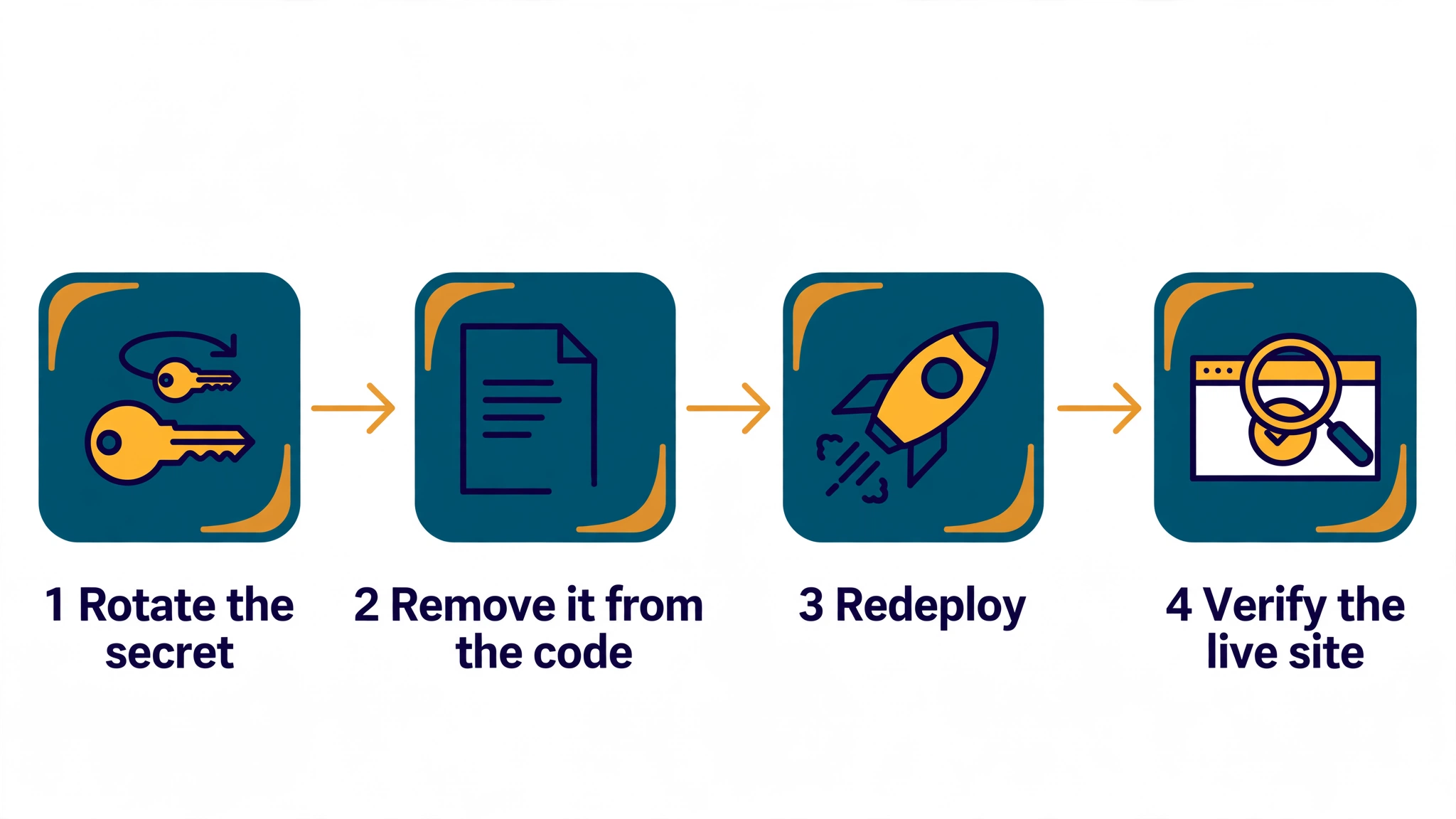
Your build failed, and the deploy log says a secret was detected. Nothing is live, nothing is broken for your visitors, and that is the point: Netlify stopped the deploy before the secret reached the public internet. The fix is not to turn the scan off and push again. It is to work out what the scanner found, make the exposed secret useless, remove it from the build, and then redeploy. In that order. Rotate first, remove second, redeploy third — because a secret you only delete is still a secret someone may already have copied.
What “Exposed secrets detected” means
Netlify runs two secret scanners on your builds, and they catch different things.
| Scanner | What it looks for | When it runs |
|---|---|---|
| Standard secret scanning | The values of environment variables you explicitly marked as secrets | On every build, once any variable is marked as a secret |
| Smart detection | Likely secrets recognised by pattern — API keys, tokens, database connection strings, cryptographic keys and certificates — whether or not you configured anything | On every build, on paid plans (Pro and Enterprise), on by default |
Both scanners search your repository code and your build output, after the build finishes and before anything is published or deployed. When either one finds a match, the build fails and the deploy log names the location of the secret so you can review it. The project overview also shows alerts when secrets have been exposed in recent deploys, and the deploys list marks any deploy where secrets were detected.
The scanner is thorough about disguises. It searches for a secret value in plaintext, base64-encoded and URI-encoded form, and a multi-line value is searched both as a single line and in multi-line form. It only searches for secret values longer than four characters that are not booleans, which is how it avoids flagging every true in your code. It does not read your mind, though: it cannot tell whether a string that looks like a key is a real credential or a harmless example. That is what the false-positive path is for, covered below.
This is not a rare edge case. When Netlify rolled out smart detection, 17% of the applications it scanned had deployments blocked for including secrets — nearly one in six were potentially about to deploy API keys, authentication tokens or certificates. The wider picture is the same: GitGuardian’s State of Secrets Sprawl 2026 counted 28.65 million new hardcoded secrets added to public GitHub commits in 2025, up 34% on the year before, and found that AI-service secrets rose 81%. Commits assisted by Claude Code leaked secrets at 3.2%, roughly twice the 1.5% baseline across public commits. AI builders write code fast, and they paste keys into it just as fast. Netlify’s scanner is the guardrail that catches that habit before it goes live.
Read the deploy log first
Before you change anything, open the failed deploy and read what the scanner actually found. In the Netlify dashboard, go to Deploys, open the failed deploy, and read the deploy log. It tells you where the secret was found — which file, and usually which line or value pattern. That location decides the fix, because a key hardcoded in a component needs a different remedy from a key that reached the bundle through a build variable.
Two things to note while you are there. First, the log names the location, not the secret itself in full — do not paste the log into a public forum or a chat thread asking for help, because it may contain fragments of the value. Second, if the log points at a file you did not expect — a generated file, a source map, a test fixture — that is useful information, not a mistake: the scanner searches everything the build produces, including files you never look at.
The fix, in order
1. Rotate the secret first
Go to the provider that issued the key — OpenAI, Stripe, Supabase, your database host — and revoke the exposed value and generate a new one. Do this before you edit any code. A secret that appeared in a build was readable by anyone who could see that build’s output, and GitGuardian’s retesting shows why this step cannot wait: of the secrets it confirmed as valid in 2022, more than 64% were still valid in January 2026. Leaked keys are almost never revoked. Assume yours has been seen, even if the deploy never went live — the value sat in your repository, your build output, or a deploy log, and any of those can be copied.
Update the new value in Netlify under Project configuration > Environment variables, and only then move on to removing the old one from the code. If you remove it first and rotate later, there is a window where the old key is still live and still sitting in your git history.
2. Find how it got into the build
There are three usual routes, and the deploy log tells you which one you have.
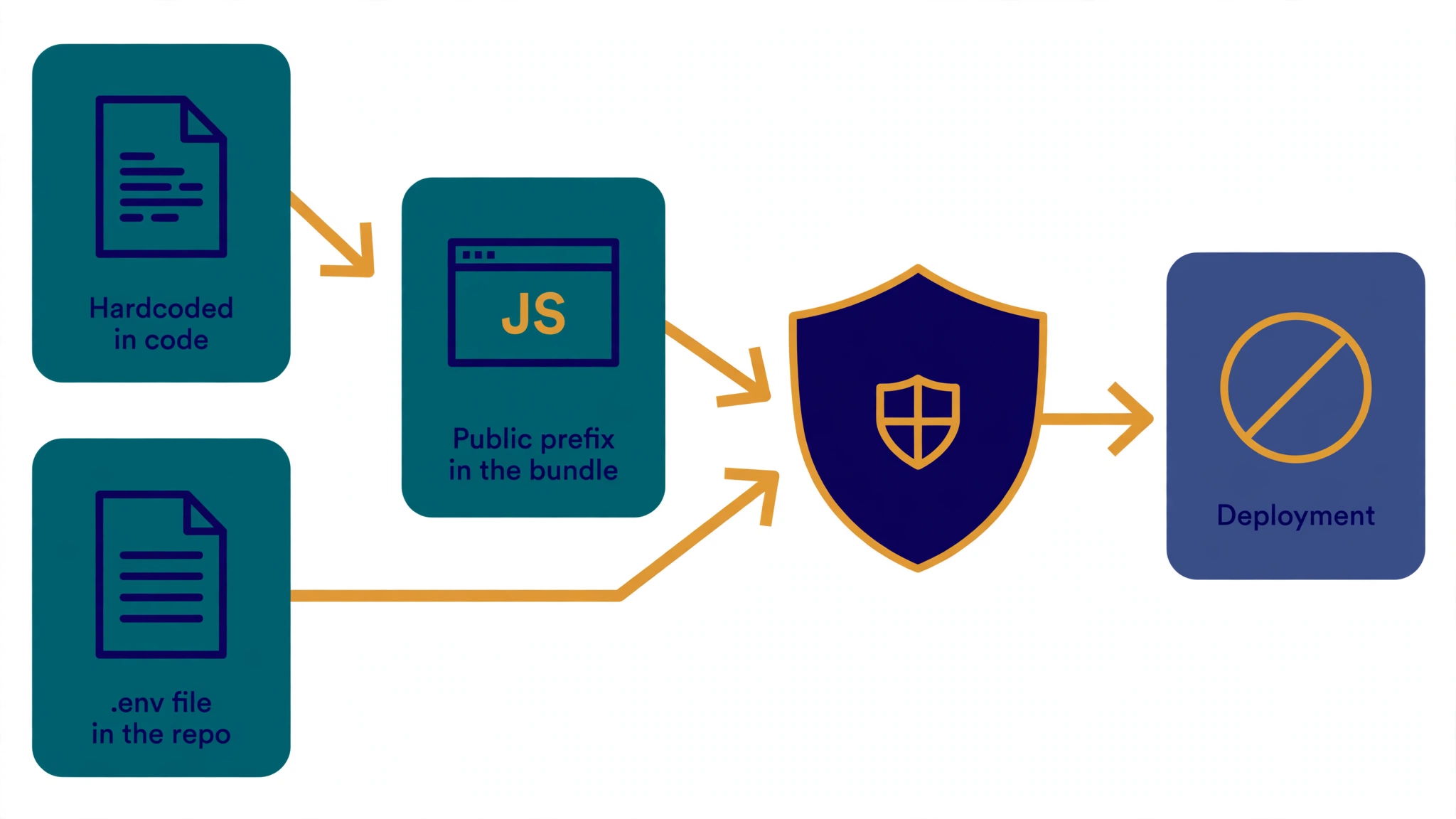
Hardcoded in the code. The key is written directly in a source file — const apiKey = "sk-..." — usually because an AI builder pasted it there while debugging, or a tutorial did. Remove the literal value and read the key from an environment variable instead. Then search the whole repository for the old value: if it appears anywhere else — a test file, an example config, a comment — it is still exposed.
Copied into the JavaScript bundle by a public prefix. This is the most common route for vibe-coded apps, and the hardest to spot, because the code looks correct. Frameworks copy any variable with a public prefix into the JavaScript every visitor downloads: VITE_ for Vite, NEXT_PUBLIC_ for Next.js, REACT_APP_, GATSBY_, NUXT_ENV_, VUE_APP_. If a secret sits behind one of those prefixes, the build substitutes the literal value into the bundle, and the scanner finds it there. Netlify’s own docs warn about this in plain words: you should not copy sensitive values into your build, because they are accessible to anyone inspecting your app files in the browser. The fix is to drop the public prefix and move the call that needs the secret into server-side code — a Netlify Function — so the key never leaves Netlify’s systems. How to Hide an API Key From the Browser Network Tab (and Why You Can’t) explains the same browser-exposure problem in detail.
Shipped as a file. A .env file in the repository, or inside the publish directory, or a credentials file the build copies into its output. Netlify’s build system does not read .env files at all — variables have to be imported into Netlify through the dashboard or the CLI (netlify env:import) — so a .env file in your repo is doing nothing useful and everything harmful. Remove it from the repository, add .env and .env.* to .gitignore, and check that your publish directory is the build output (for Vite, usually dist), not the project root. Is a .env File Secure? What It Protects and What It Doesn’t covers the checks.
A fourth route is worth a mention because it looks innocent: a build script that logs the value. A console.log of an environment variable writes the secret into the deploy log itself. Once a variable is marked as a secret, Netlify masks its value in logs — but a value nobody marked is not masked. Search your build scripts for logging of credentials, and log a yes-or-no (“key is set”) instead of the value.
3. Put the new secret where the scanner can protect it
With the old value rotated and removed, set the new one up properly so the next build is protected rather than merely unblocked.
- Store it in Netlify, not in the repo. Set it under Project configuration > Environment variables, or with the CLI:
netlify env:set STRIPE_SECRET_KEY sk_live_... --secret. Never put a sensitive value innetlify.toml: that file lives in your repository, its variables cannot have scopes set, and they override the values you set in the dashboard. - Mark it as a secret. Tick Contains secret values when you create or edit the variable. That applies Netlify’s secrets policy: the value becomes write-only — nobody can read it back from the UI, CLI or API after setting it — and the flag cannot be removed afterwards. From that point, standard secret scanning watches every build for that value.
- Give it the narrowest scope it needs. Scopes decide which part of Netlify can read the variable: Builds, Functions, Runtime, or Post processing. A key that only a serverless function needs should have the Functions scope, not Builds — a value with the Builds scope is available to the build process, which is exactly where it can end up in the output. Secrets cannot use the Post processing scope, because snippet injection could expose them.
- Give each deploy context its own value. Production, Deploy Previews, Branch deploys and Local development are separate contexts. A preview URL is reachable by anyone who has the link, so a preview that holds the production database password turns every preview bug into a production incident. Use test keys for previews.
- If your repository is public, check untrusted deploys. For public repos, the “Build without sensitive variables” option keeps sensitive variables out of Deploy Previews from forks. Netlify also tries to detect sensitive variables itself, from the name (words like PASSWORD, TOKEN, SECRET, API_KEY) and from the value’s shape — but heuristics are a fallback, not a guarantee, so mark the variable explicitly.
4. Clean the git history if the secret was committed
Removing a key from the current code does not remove it from the repository’s history. Anyone who clones the repo can check out an earlier commit and read it. If the secret was ever committed — check with git log — rewrite the history to remove it, using git filter-repo or the BFG Repo-Cleaner, and force-push the cleaned history. Then tell every collaborator to re-clone rather than pull, because a pull will not remove the old commits from their copy. If the repository is public and the secret sat in it for any length of time, assume it was copied: rotation, which you already did in step 1, is what actually protects you. “API Key Exposure Detected in Your Repository”: What the Alert Means and How to Clean Up walks through the GitHub side of this, and What Happens If Your API Key Is Exposed? Real Costs and a 10-Minute Fix Plan covers checking provider usage logs for abuse during the leak window.
5. Redeploy and verify
Trigger a new deploy from Deploys > Trigger deploy > Deploy project. The build should pass. Then verify the fix the way a stranger would: open the live site, open the JavaScript bundle in your browser’s developer tools, and search it for the old key’s prefix (sk-, sk_live_, sb_secret_) and for the new key’s prefix. Neither should appear. Also request https://your-site.com/.env and confirm it does not return your file’s contents — a single-page app may answer 200 with your home page, which is not a leak, but real KEY=value lines in the body always are. PrivacyReport’s free scanner checks your live site from outside for exposed keys in the shipped JavaScript and for reachable .env files — run it after you fix things, and again after your next deploy, because a single AI edit can put a key back.
If it is a false positive
Sometimes the scanner flags a string that is not a secret at all — a long example token in documentation, a test fixture, a hash that happens to match a pattern. Netlify’s own docs call this out as a normal case, and there is a proper path for it. Do not reach for the off-switch first.
- Safelist the exact string. Go to Project configuration > Environment variables, add a variable named
SECRETS_SCAN_SMART_DETECTION_OMIT_VALUES, and set its value to the flagged strings, separated by commas. Then trigger a fresh deploy. The scanner will not flag those strings again for this project. - Narrow standard scanning if the flag is on the wrong variable.
SECRETS_SCAN_OMIT_KEYStakes a comma-separated list of variable names the scanner should skip, andSECRETS_SCAN_OMIT_PATHStakes file paths (substrings or globs, relative to the repository root) it should not scan. Use these narrowly: omitting a whole path means a real secret in that file will not be caught either. - Only then consider turning smart detection off. Set
SECRETS_SCAN_SMART_DETECTION_ENABLEDtofalseacross all available scopes. Note that this disables only smart detection — standard scanning for variables you marked as secrets keeps running, which is the right default.
There is a trap here that caught real users. There are two similarly named switches, and they do different things: SECRETS_SCAN_ENABLED=false disables all secret scanning, including for your marked secrets, while SECRETS_SCAN_SMART_DETECTION_ENABLED=false disables only smart detection. In June 2025, a user set the first, rebuilt, and still failed — because the flag had come from smart detection — then set the second and still failed, because they had written FALSE in capitals. Lowercase false worked. If you do switch smart detection off, write it in lowercase, set it across all scopes, and know that you have removed the safety net that catches secrets nobody configured. Treat it as a temporary measure while you fix the underlying problem, not as the fix.
What not to do
- Do not disable all scanning to get the build out.
SECRETS_SCAN_ENABLED=falseremoves protection for every secret, including the ones you marked. It also hides the evidence: the next leak will deploy silently. - Do not safelist a real secret. The omit list is for strings that are not secrets. Putting a live key in it tells the scanner to look away while the key ships to the browser.
- Do not “fix” it by renaming the variable. Changing
STRIPE_SECRET_KEYtoSTRIPE_KEY_2while the value still lands in the bundle only fools the pattern matcher for a while. The value is still public. - Do not delete the secret without rotating it. Deleting a file or a line of code does not un-publish anything that was already readable. Rotation is the only step that makes the old value useless.
- Do not paste the deploy log into a public thread. The log can contain fragments of the value. Describe the file and the line, not the secret.
A 10-minute check before your next deploy
- Search the repo for secret shapes (3 minutes). Look for
sk-,sk_live_,sb_secret_,AKIA, and anyVITE_orNEXT_PUBLIC_variable whose value is a credential. Anything that matches gets moved server-side or marked as a secret. - Check the publish directory (1 minute). It should be the build output, not the project root. Confirm no
.envfile is inside it. - Mark every real secret (3 minutes). In Project configuration > Environment variables, tick Contains secret values for each API key, token, password and database credential, and set Functions scope where the value is only needed at runtime.
- Check the bundle after deploy (3 minutes). Open the live JavaScript and search for the key prefixes above. A clean bundle is the only proof that counts — the build passing means the scanner found nothing, not that nothing is there.
FAQs
What does “Exposed secrets detected” mean on Netlify? It means one of Netlify’s secret scanners found a value that looks like a secret in your repository code or build output, and the build was failed before anything was published. Either a variable you marked as a secret was found in the output, or smart detection recognised a likely secret by its pattern. The deploy log names the location.
Where do I find what Netlify detected? In the deploy log: Site dashboard > Deploys, then open the failed deploy. The log identifies the location of the exposed secret. The project overview also shows alerts for secrets exposed in recent deploys, and the deploys list marks deploys where secrets were detected.
Should I just turn off secret scanning to get my site deployed?
No. Turning it off deploys the secret along with the site. The safe order is to rotate the exposed secret at its provider first, remove it from the code and the build, and then redeploy. If the flag is a genuine false positive, safelist that exact string with SECRETS_SCAN_SMART_DETECTION_OMIT_VALUES instead.
Why did Netlify flag my build when the key is only in an environment variable?
Because the value reached the build output. Setting a variable in Netlify does not keep it secret on its own — if your code copies it into the JavaScript bundle, for example through a VITE_ or NEXT_PUBLIC_ prefix, the value ships to every visitor’s browser. Move the call that needs the secret into a Netlify Function, and mark the variable as a secret with the Functions scope.
What is the difference between secret scanning and smart detection?
Standard secret scanning watches for the values of variables you explicitly marked as secrets. Smart detection needs no configuration: it recognises likely secrets by format, context and common usage — API keys, tokens, database credentials, certificates — including ones an AI builder introduced that you never configured. They are switched off by different variables: SECRETS_SCAN_ENABLED=false disables all scanning, SECRETS_SCAN_SMART_DETECTION_ENABLED=false disables only smart detection.
I removed the key from my code but the build still fails. Why? Either the value is still in the build output somewhere — a generated file, a source map, a test fixture, or an older bundle the build still includes — or it is still in the repository and the scanner is finding it in the code it pulls. Read the deploy log again: it names the current location. If the secret was committed, the history still holds it, and you need to clean the history as well as the working files.
Does Netlify secret scanning work on the free plan? Standard secret scanning runs once you mark a variable as a secret. Smart detection — the pattern-based scanning that needs no configuration — is available on paid plans (Pro and Enterprise) and is enabled by default there. Whatever your plan, the habit that prevents the failure is the same: secrets live in Netlify’s environment variables with the secret flag, are used only in server-side code, and never appear in the repository or the JavaScript bundle.
Sources
- Netlify — Secret scanning
- Netlify — Enhanced security with Secrets Controller
- Netlify — Get started with environment variables
- Netlify blog — Smart Secret Scanning for AI-Generated Code
- Netlify blog — Introducing Secrets Controller: Proactive Security for Secret Keys
- Netlify Support Forums — Can’t build due to secret scanning
- Google Search Status Dashboard — November 2026 core update
- Securafy — AI Coding Assistant Secrets Leaks: What 2x Means and the Fix — GitGuardian State of Secrets Sprawl 2026 figures (report published 17 Mar 2026) as summarised, with the 28.65 million, 3.2% and 64% figures corroborated across the Snyk and Keybrum sources below
- Snyk — Why 28 million credentials leaked on GitHub in 2025, and what to do about it
- Keybrum — Secrets Management for Small Teams: a Practical Guide
- runxbuild — How to Add an API Key in Netlify Without Publishing It to the World
- StackSiren — Is my .env file public? Check, fix and rotate secrets
- StackSiren — Exposed .env, .git or VITE_ secret? How to fix it
- Keybrum — Vercel vs Netlify: Security Compared (2026)
Related reading
- Is a .env File Secure? What It Protects and What It Doesn’t
- “API Key Exposure Detected in Your Repository”: What the Alert Means and How to Clean Up
- What Happens If Your API Key Is Exposed? Real Costs and a 10-Minute Fix Plan
- How to Hide an API Key From the Browser Network Tab (and Why You Can’t)
- What to Do If Your API Key Is Exposed
- How to Keep API Keys Away From Claude Code, Cursor and Other AI Agents
- What Is a Secret Scanner and Why You Need One (Full Guide)
- How to Scan for Secrets in VS Code: Complete Developer Guide
- OpenAI API Key Exposed? What to Do in the Next Hour
- Free Security Scanner for Vibe-Coded Apps: Check Yours in 60 Seconds
- Vibe-Coded App Security Checklist: 25 Checks Before You Launch
- Is It Safe to Expose Your Supabase Anon Key? (Only If RLS Is On)
